












Top Mobile App Design Tools: 12 Picks For Different Workflows

A product team may use one app to map screens, another to test a swipe gesture, and a third to hand off specifications. The challenge is knowing which mobile app design tools solve distinct jobs and which only add another subscription. This curated comparison groups options by workflow, separates core UI work from specialist support tools, and helps solo designers and product teams build a shortlist before committing.
Best Mobile App Design Tools by Workflow
Start with the work you need to complete, not a universal “best” label. The picks below are a curated comparison of product roles and publicly documented features, not results from a controlled hands-on benchmark.
| Workflow need | Shortlist | Platform and cost check |
|---|---|---|
| Design screens and share one source of truth | Figma; Sketch for Mac-first teams | Compare browser/desktop access, editor seats, reviewer roles, and annual versus one-time payment. |
| Map a flow before visual polish | Balsamiq; MockFlow | Check editing and sharing access, project limits, and whether the output moves into a UI system. |
| Test gestures, conditions, or complex states | ProtoPie; Axure RP; UXPin | Confirm supported editor/player devices and per-author pricing; use extra depth only for a testable question. |
| Make a shareable interactive demo | Proto.io; Justinmind; Mockplus | Verify device preview, sharing, export, and the current trial or paid-plan limits. |
| Organize design-to-development handoff | Figma Dev Mode; Zeplin | Compare developer/reviewer access with project-based or per-seat plans before adding another tool. |
For a fuller sequence from research to shipped screens, see the mobile app design process. The right shortlist usually becomes clear once you know which design artifact the team needs next.
How We Curated This Mobile App Design Tools List
This is an editorial shortlist based on official product and pricing information checked on September 30, 2026, where accessible. It is not a hands-on benchmark: we did not run every product through the same task, measure prototype time, or assign weighted scores. “Best for” describes a practical use case, not a universal ranking or an independently measured winner.
Selection follows the artifact a team needs. Core UI tools create and maintain screens and components; wireframing tools clarify structure; prototyping tools represent interactions; and handoff tools organize implementation details. Supporting tools for assets, diagrams, or web experiences appear separately so they are not presented as direct substitutes for a mobile UI workspace.
Recommendations map publicly documented capabilities to these workflows, then consider platform fit, collaboration, handoff, learning effort, and pricing basis. This is a qualitative decision framework, not a point score: an item appears because its role solves a distinct task, and its “Watch for” note names a reason it may not fit. Vendor feature pages support capability descriptions, not claims of output quality. Recheck current product status, billing cadence, seat limits, and access before purchase.
12 Mobile App Design Tools to Consider
The numbered sequence is for navigation, not a ranking. These products serve different stages, so compare each one with the task in the workflow table rather than treating all 12 as substitutes. Each review names the useful fit, the main limit, and the check to make before adding it to a tool stack.
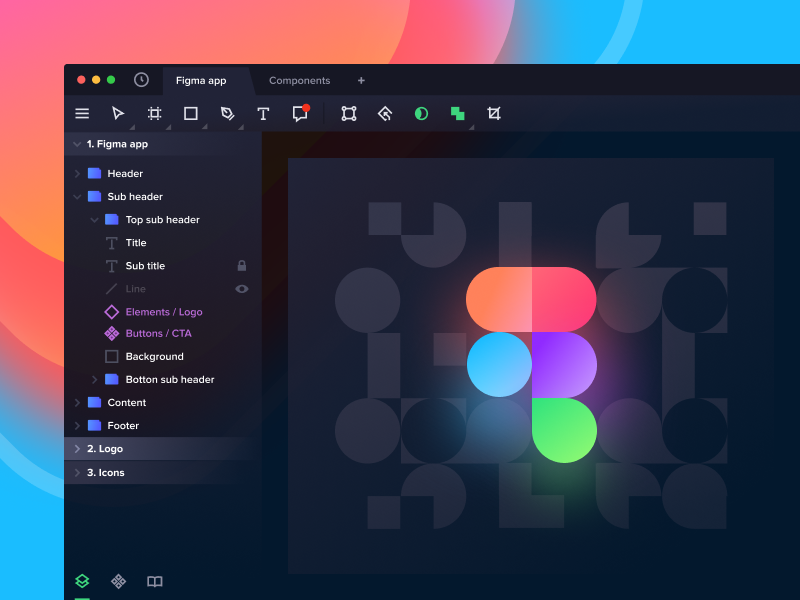
1. Figma: Shared UI Design and Team Collaboration
Figma is a practical first shortlist for teams that need shared interface files, reusable components, comments, prototyping, and developer inspection in one workspace. Its value is strongest when designers, product partners, and developers need to review the same evolving screens rather than pass static exports between tools.
Figma can cover much of an early product workflow, but a built-in prototype is not a substitute for every usability test or high-fidelity interaction study. Larger teams should check the seat types, file permissions, design-system governance, and Dev Mode access they actually need before estimating cost.
- Best for: Product teams that need collaborative UI design and handoff.
- Watch for: Seat and permission differences; detailed logic may need a specialist prototype tool.
- Pricing snapshot: Figma’s Professional Full seat was displayed from $16 per month when checked on September 30, 2026. Confirm the billing term and role-specific seat price on Figma’s pricing page.
Xem thêm
2. Sketch: Mac-First Interface Design
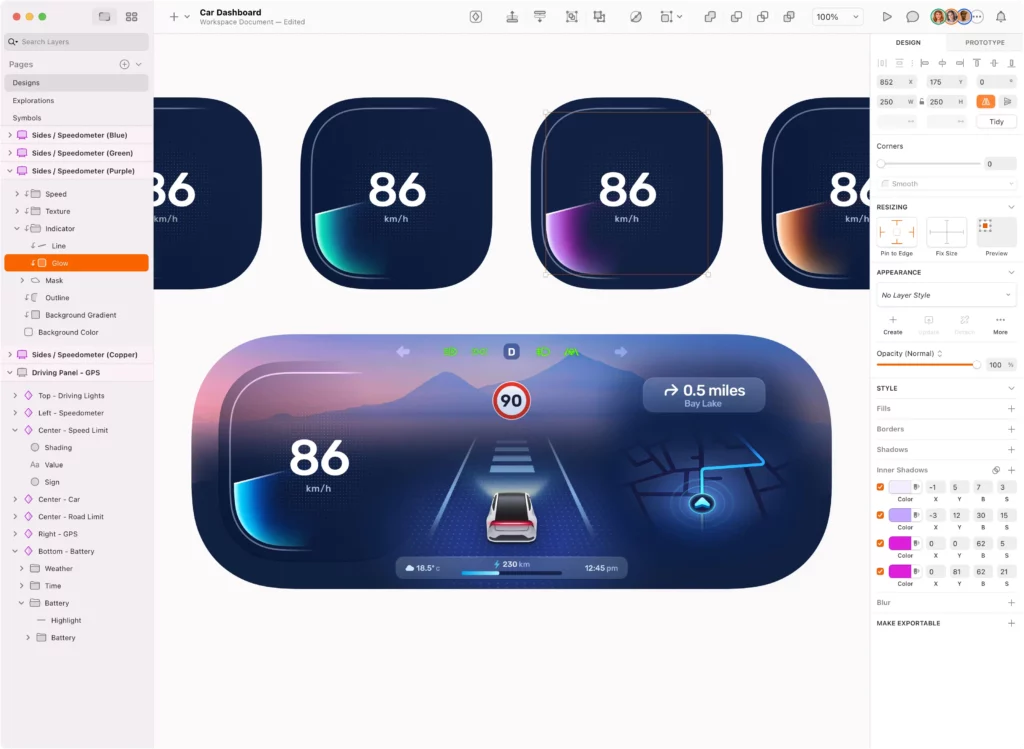
Sketch suits designers who prefer a native Mac app and already use its symbols, libraries, and file workflow. It remains a focused option for crafting app screens, while its web workspace supports review and collaboration beyond the person editing on a Mac.
Choose Sketch when Mac is the team’s standard and its workflow fits existing files. A mixed-device group should test how non-Mac teammates review, hand off, and contribute before moving a shared project; the desktop design app is not a cross-platform editor.
- Best for: Mac-first designers and teams with an established Sketch library.
- Watch for: Cross-platform editing requirements and how web viewers fit the handoff.
- Pricing snapshot: The Standard subscription was listed from $12 per editor per month, billed yearly; a separate Mac-only license was also listed. Compare the current options on Sketch’s pricing page.
3. Balsamiq: Low-Fidelity App Wireframes
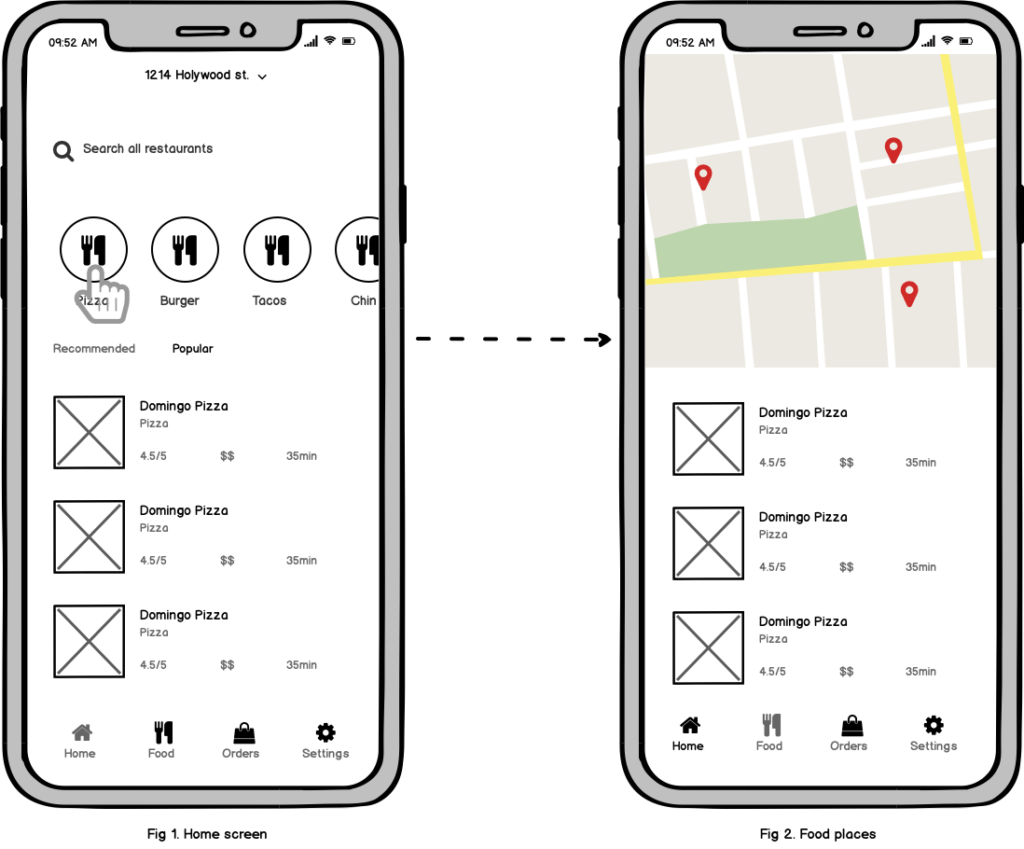
Balsamiq is designed for rough wireframes, so teams can discuss screen structure and task flow before visual polish takes over the conversation. It is useful when a product manager, founder, or designer needs to make an early idea concrete and collect feedback on what belongs on a screen.
The deliberate sketch-like look is also its boundary. Balsamiq is not a place to manage a mature visual system or test realistic transitions. Move approved structure into the team’s core UI tool when color, responsive states, and components matter. See the guide to app wireframes and how to create one for the artifact this stage should produce.
- Best for: Early screen layout, feature scope, and quick stakeholder discussion.
- Watch for: Do not treat a wireframe as a final UI specification or a realistic interactive prototype.
- Pricing: Compare the current project-based plans and trial terms on Balsamiq’s pricing page.
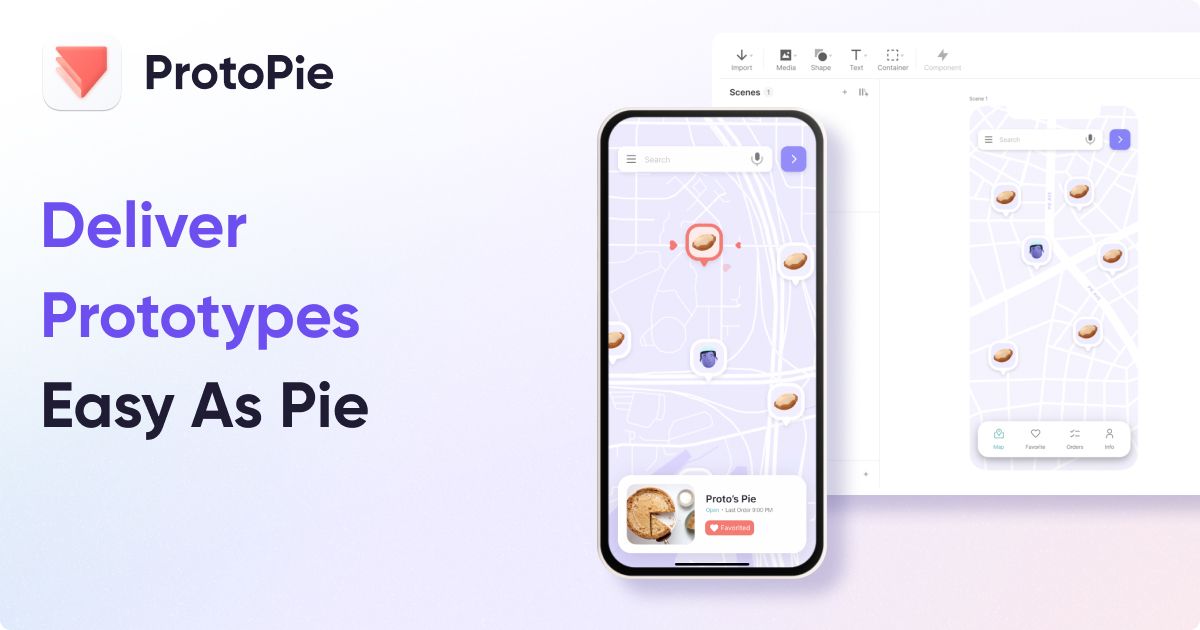
4. ProtoPie: High-Fidelity Interaction Prototypes
ProtoPie is a specialist option when a mobile experience depends on gestures, sensors, conditional behavior, or connected states that a simple tap-through cannot communicate. Designers can use that added interaction depth to explore how a flow should respond before engineering work begins.
That depth makes ProtoPie a companion to a UI design workspace for many teams, not necessarily its replacement. Set a specific test goal first, such as checking whether a swipe action is discoverable; otherwise, the extra prototype detail may cost time without changing a product decision. The vendor also promotes AI-assisted interaction generation; treat generated behavior as a starting point and validate it against the intended flow and device requirements.
- Best for: Testing interactions that depend on more than linked static screens.
- Watch for: Specialist learning and workflow overhead; confirm supported device previews and collaboration needs.
- Pricing snapshot: The vendor displayed Basic at $25 per month and Pro at $47 per editor per month on September 30, 2026. Check current limits and billing terms at ProtoPie’s plans page.
- AI feature note: See the vendor’s current product overview; feature descriptions are vendor claims, not comparative test results.
5. Origami Studio: Motion and Interaction Exploration
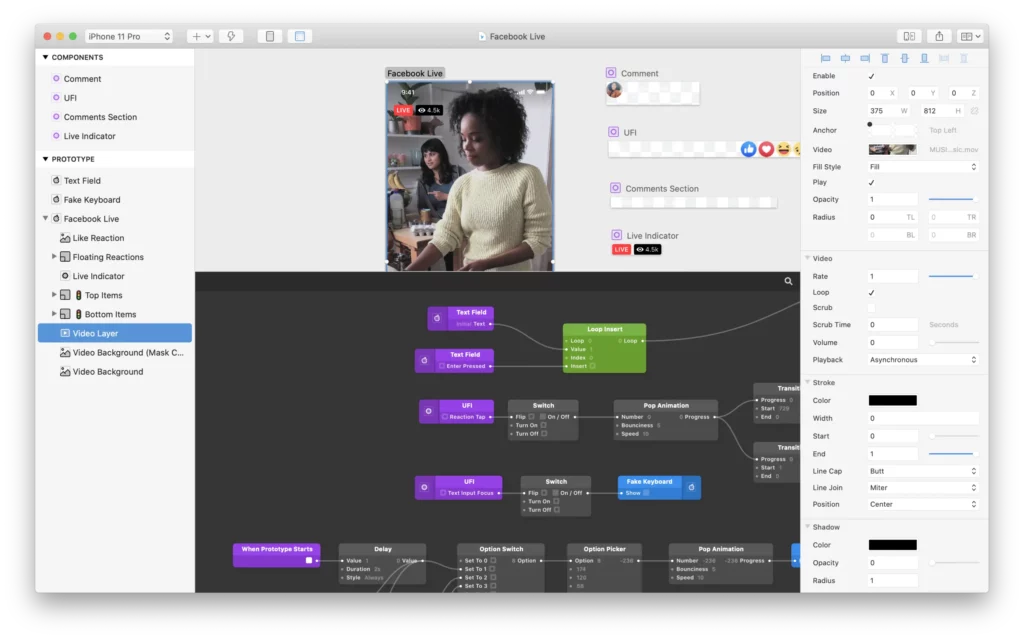
Origami Studio gives designers a patch-based way to build and preview complex interactions. It can help an experienced designer explore motion or behavior that is hard to explain with a static screen, especially in an experimental product concept.
Its specialist nature is the trade-off: a team-wide default needs to be easy to learn, review, and maintain, while an advanced prototype may be useful only to a few people. Try one representative interaction and agree how its behavior will be handed to engineering before adding it to a standard workflow.
- Best for: Advanced interaction studies and motion-heavy concepts.
- Watch for: Learning curve and narrower team adoption than a shared UI workspace.
- Access: Origami Studio was presented as a free download on its official site when checked; confirm current system requirements and access on Origami Studio’s official site.
6. Axure RP: Logic-Heavy Product Flows
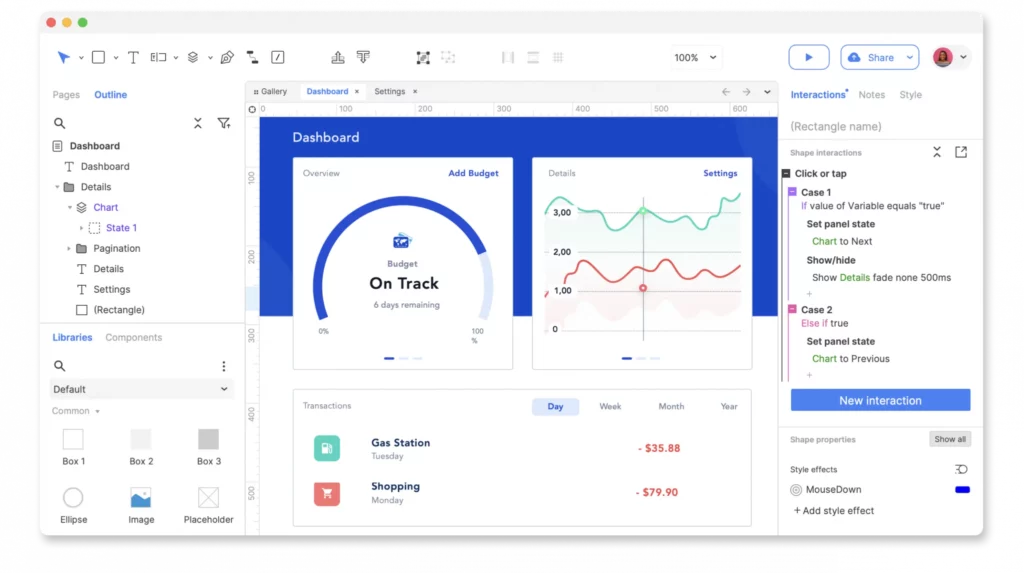
Axure RP fits prototypes with conditional rules, dynamic states, and detailed flow documentation. It can help teams discuss how a complex screen changes with user input or system state before those conditions are implemented.
This flexibility can be excessive for a simple demo. Use Axure when realistic logic or detailed review changes a decision. Document which behaviors are essential and which are only prototype scaffolding. On September 30, 2026, the vendor listed RP Pro at $29 per user per month and Team at $49 per user per month. Verify the current billing option on Axure’s pricing page.
- Best for: Enterprise or complex product flows that need conditions and documentation.
- Watch for: Setup and learning time compared with lightweight clickable prototypes.
7. UXPin: System-Based Design and Interactive Prototypes
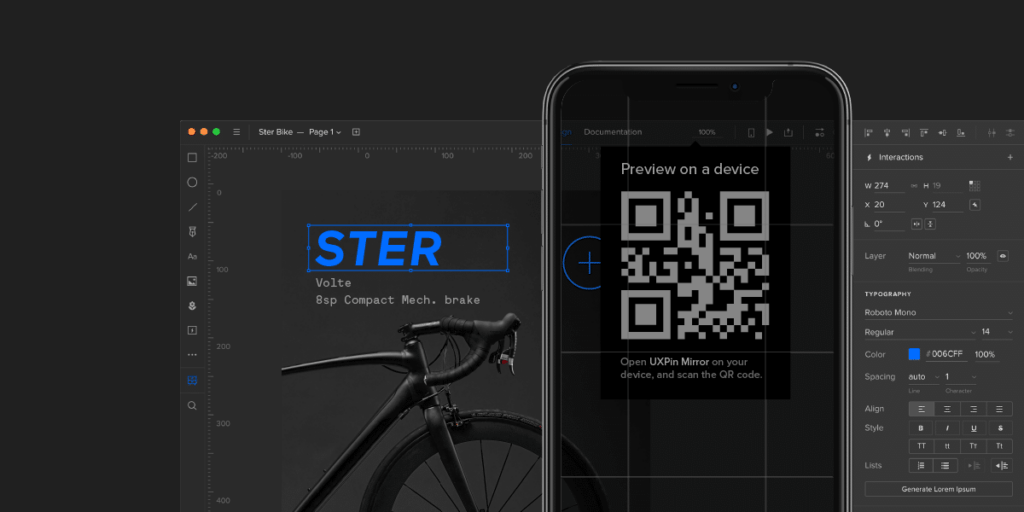
UXPin is worth evaluating when a team needs to connect reusable components with interactive behavior. Its system-oriented workflow can help mature product groups keep design patterns consistent while they represent more than a basic screen transition.
The extra structure has a cost in setup and adoption. A small team making a few screens may get more value from a simpler tool. Larger teams should test whether UXPin’s component model, collaboration, and integrations match their needs. Do not select it for feature breadth alone.
- Best for: Teams combining reusable design patterns with behavior-rich prototypes.
- Watch for: Adoption overhead and plan-specific limits; confirm current tiers at UXPin’s pricing page.
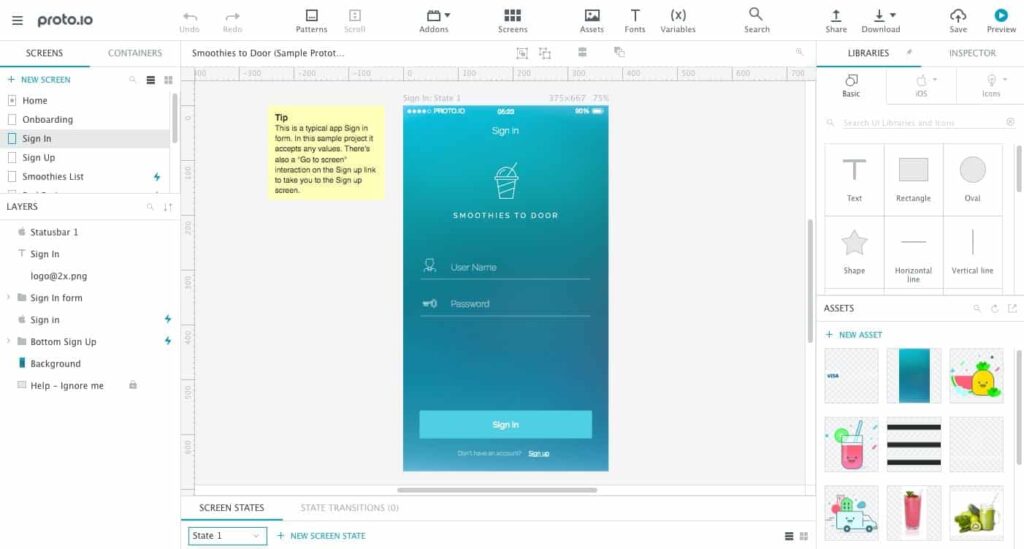
8. Proto.io: Shareable Interactive Demos
Proto.io is an option for teams that want to turn screens into a shareable interactive flow without building a prototype from scratch in code. A demo can help stakeholders or test participants react to navigation and screen behavior before implementation.
Check its device preview, import, collaboration, and export workflow against the project task. A current plan price could not be verified on September 30, 2026, so confirm availability and commercial terms on the official product page before adopting it.
- Best for: Clickable demos and stakeholder feedback with modest setup.
- Watch for: Verify current product access, mobile preview, export, and pricing directly with Proto.io.
9. Justinmind: Wireframing Through Interactive Flows
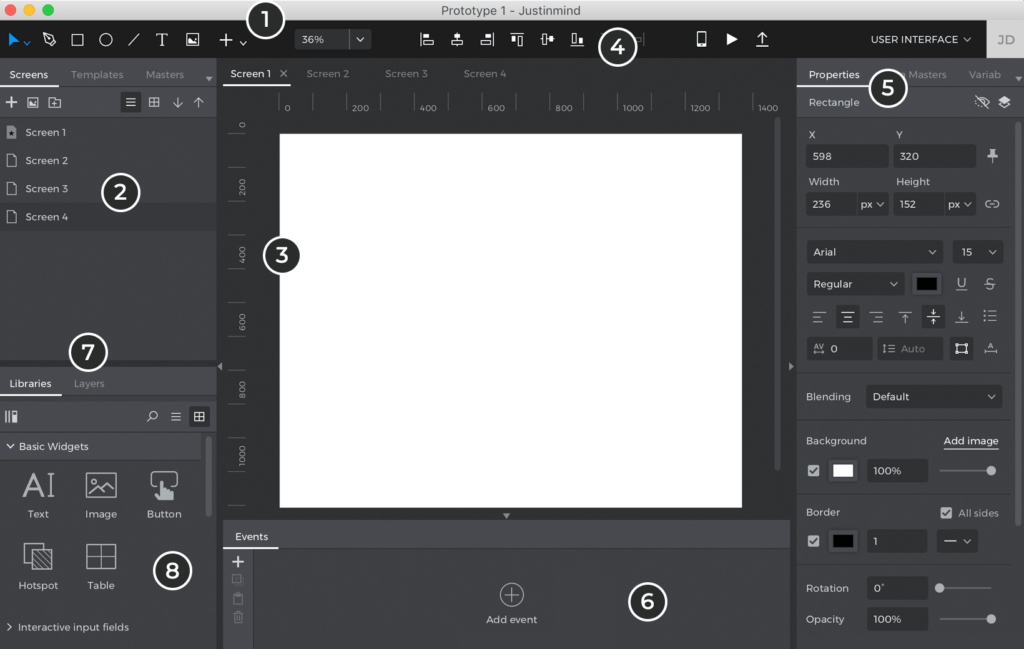
Justinmind combines wireframing, screen design, and prototyping in one product. That can suit teams that want to carry an app flow from early structure into more detailed interactions without immediately adopting several specialist tools.
Its breadth is useful only if the team adopts the features it needs. Compare authoring-user plans, collaboration options, and limits with a focused tool pair. For example, a wireframing tool plus a core UI workspace may be enough. Avoid paying for a product that repeats an existing workflow.
- Best for: Teams that want wireframes and richer app flows in one product.
- Watch for: Interface fit and the number of seats that actually need authoring access.
- Pricing: Compare current authoring-user plans and tiers at Justinmind’s pricing page.
10. MockFlow: Early Ideation and Wireframes
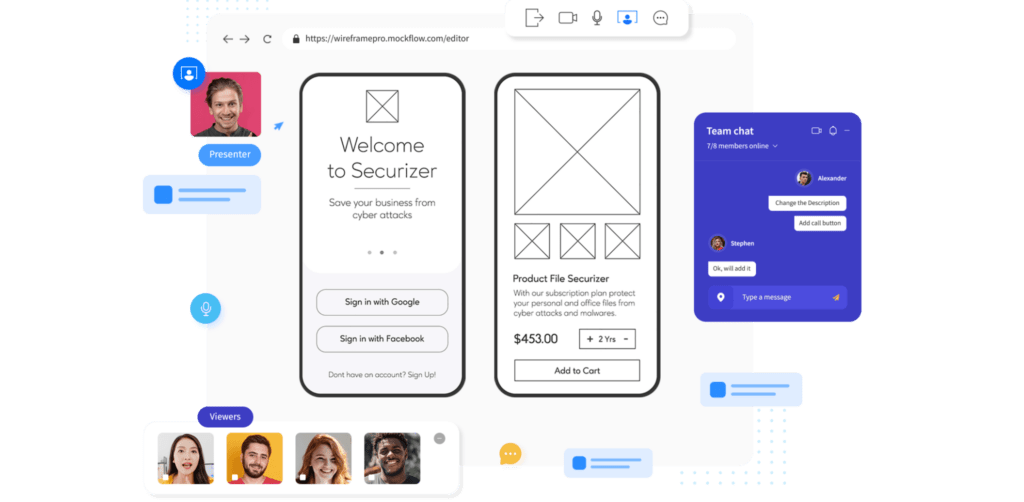
MockFlow brings wireframing and visual planning into a shared workspace. It can help a product team organize early concepts, screen ideas, and comments before it commits to detailed interface design.
Its breadth should not be confused with depth in every workflow. If the team needs a production UI system or realistic mobile interactions, compare MockFlow with its core design and prototype tools. Do not expect a planning workspace to cover every stage.
- Best for: Early planning, whiteboarding, and lightweight wireframing.
- Watch for: Whether the output can move cleanly into the product’s main UI design system.
- Pricing: Plans vary by product and bundle; check current options on MockFlow’s pricing page.
11. Mockplus: Fast Prototyping and Team Review
Mockplus is a candidate for teams that value a quick path from screen concepts to a prototype they can share and discuss. It can be a practical fit when ease of adoption matters more than advanced logic or a highly customized design-system workflow.
Before adding it to a larger stack, test the actual review path: who can comment, what the developer receives, how versions are managed, and what export or integration limits apply. The old pricing URL was unavailable during this review, so confirm the current product and billing terms on Mockplus’s official site.
- Best for: Teams that need approachable prototyping and shared review.
- Watch for: Confirm current plan boundaries and integrations before migrating an existing workflow.
12. Zeplin: Structured Design Handoff
Zeplin focuses on organizing approved designs, specifications, annotations, and developer review. It can help when teams want a deliberate handoff space or clearer access boundaries between design editing and implementation.
Zeplin is not a substitute for creating app screens; it works downstream from a design tool. Teams already comfortable with their design product’s inspection workflow should compare the value of a separate workspace with its added project or editor cost.
- Best for: Teams that need a dedicated specification and handoff layer.
- Watch for: Whether it adds value beyond the current source-of-truth tool.
- Pricing snapshot: The vendor showed separate project-based Basic and per-seat Advanced pricing when checked on September 30, 2026. Confirm both the unit and billing cadence on Zeplin’s pricing page.
Supporting Tools for Specific Parts of App Design
Some tools help with one artifact around app design but should not be compared as full UI workspaces. Add them only when that separate output solves a real problem.
Vector Asset Creation: Affinity and Adobe Illustrator
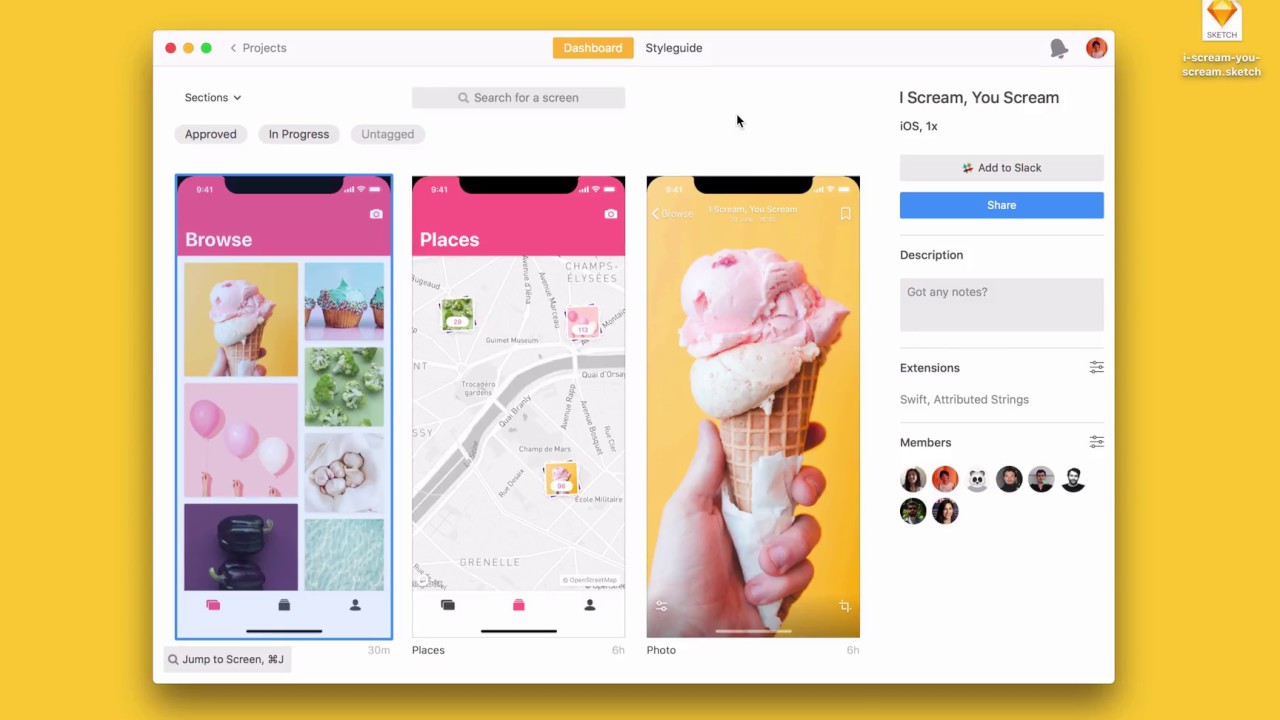
Vector editors create icons and illustrations that a mobile interface can reuse; they do not replace screen libraries, interaction prototypes, or developer handoff. The current Affinity app is presented by its publisher as a free product for vector design, photo editing, and page layout. Check current account or sign-in requirements before adopting it, and confirm that exported assets fit the team’s file and design-system workflow.
Adobe Illustrator can suit detailed illustration and vector artwork, but keep it in the asset-production role rather than treating it as the team’s app-screen source of truth. Check Adobe’s current plan terms before budgeting.
Diagrams and Feature Mapping: OmniGraffle and MindNode
OmniGraffle can support structured diagrams, information architecture, and flow maps; MindNode can help organize ideas and feature relationships before wireframes. The useful output is the map or hierarchy a team will use in a later design stage, not a finished app UI.
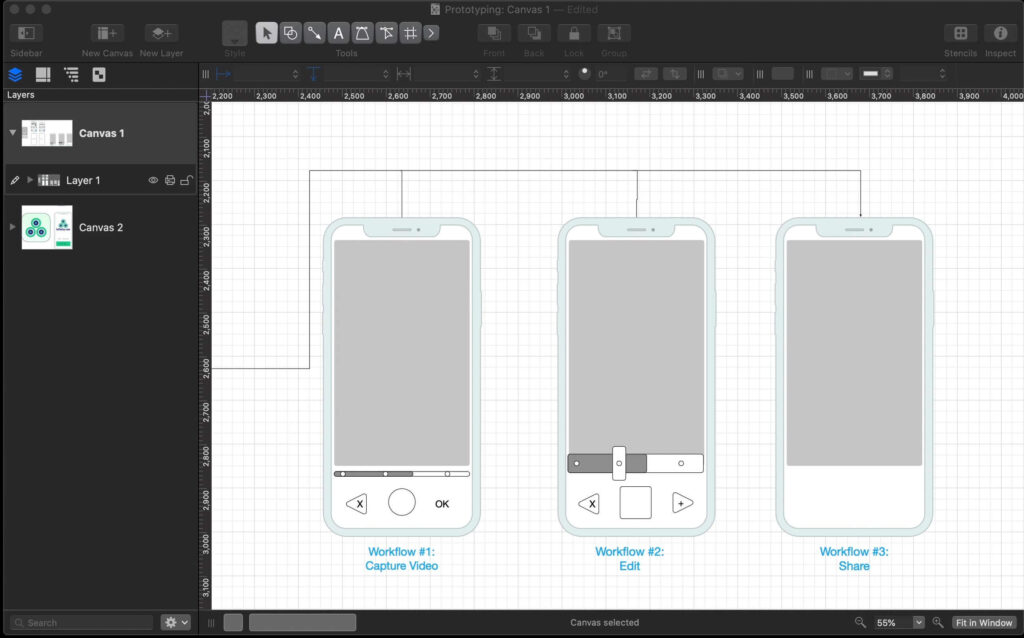
For an early paper workshop, physical UI stencils can help a team sketch screen structure. They are materials, not software, so keep them outside any software shortlist.
Interactive Web Experiences: Framer
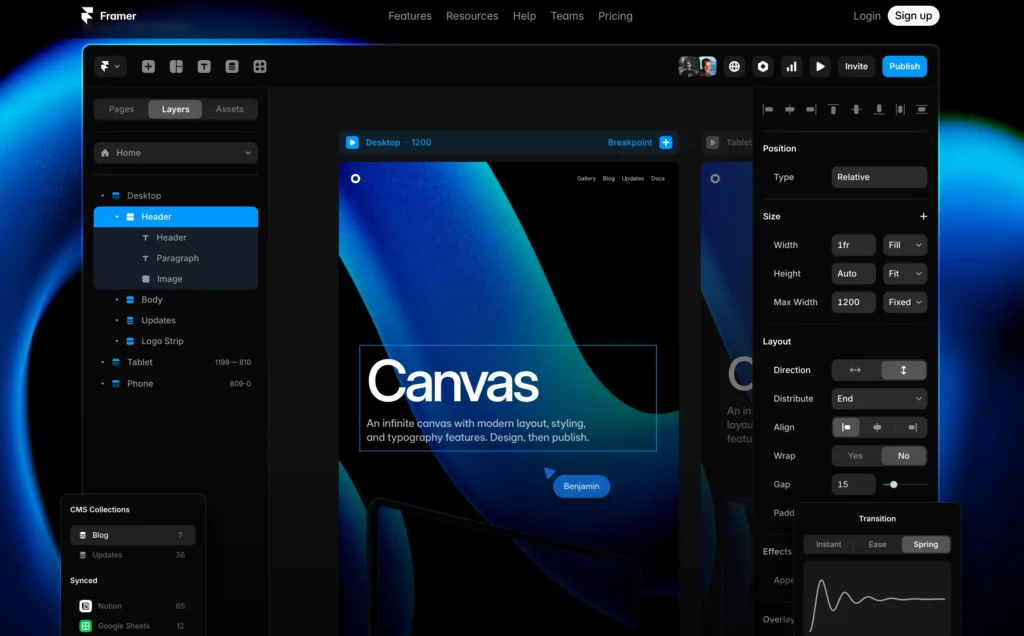
Framer is closer to web layout, interactive publishing, and website prototypes than a native mobile-app UI system. It can help with an app landing page or a browser-based product concept. It does not replace app-screen design and device-specific handoff.
Prototype Review and User Feedback: Marvel
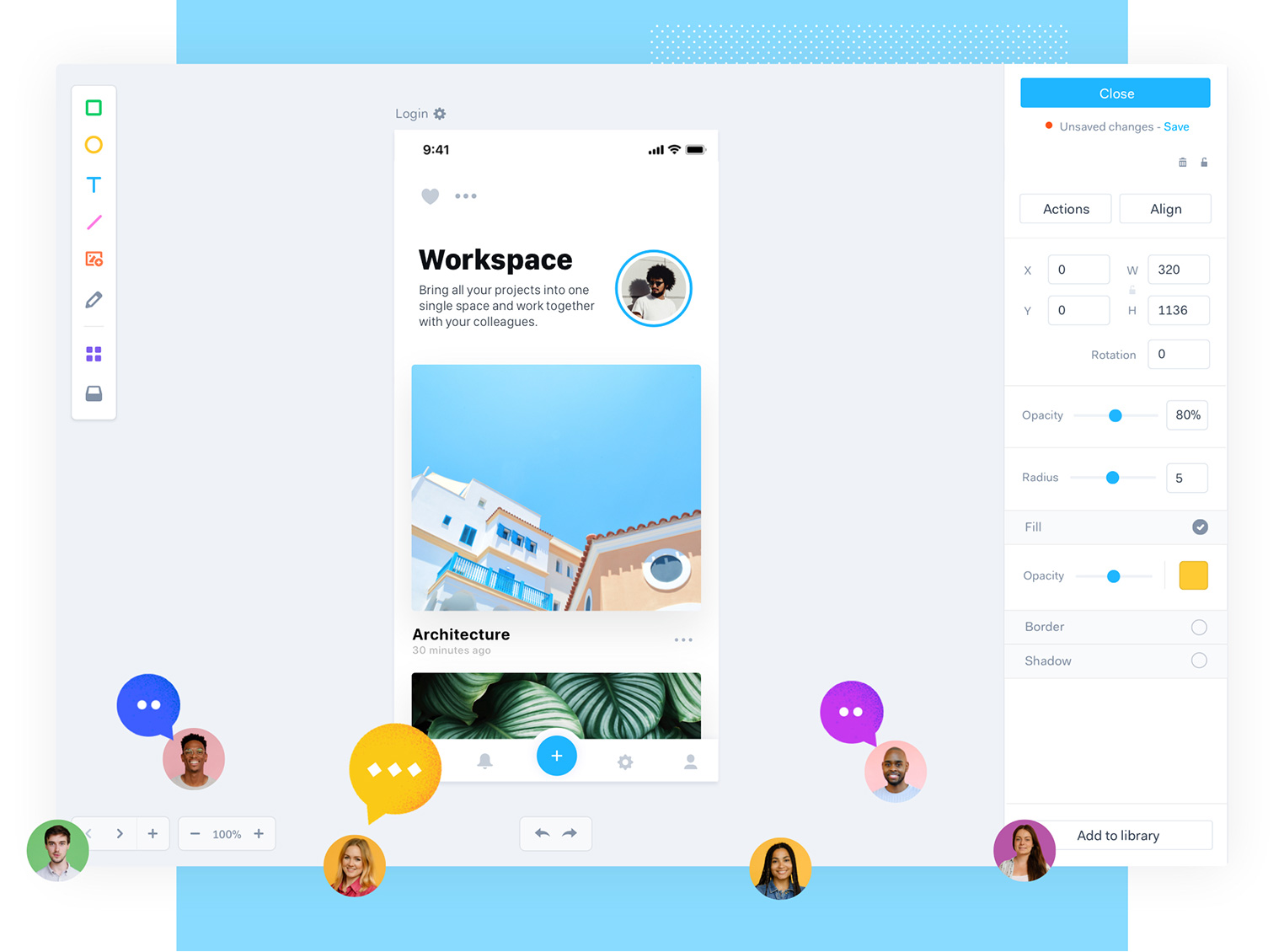
Marvel’s current site describes interactive mockups and design collaboration, and it now points to Ballpark for user testing and surveys. That makes it an adjacent option for prototype review rather than a proven replacement for a team’s core UI design system.
Before moving a project into it, check that the features the team needs are available in its current product and plan. In particular, verify sharing, integrations, existing-file compatibility, and how testing feedback is stored; do not assume older pricing or feature claims still apply.
- Best for: Lightweight prototype review when its current workflow fits the team.
- Watch for: Current product boundaries and plan details; check Marvel’s official site before selecting it.
How to Choose a Mobile App Design Tool
Use a short decision sequence: identify the next design output, choose its tool category, shortlist two candidates, then test the same task in both. This avoids comparing a mind map with a prototype or buying a second tool before the workflow needs it.
- Name the artifact. Is the team producing a flow map, low-fidelity wireframe, polished UI screen, interaction prototype, or developer specification?
- Choose the category. Match the artifact to a wireframe, core design, prototype, or handoff tool. A supporting asset or diagram tool should have its own clear job.
- Run the same mobile task in two candidates. Build a sign-up flow with empty, invalid, and success states; check a narrow phone layout, a key interaction, comments, and developer handoff. This exposes whether the tool supports the actual workflow, not just its feature list.
- Check the constraints. Confirm operating systems, access roles, version history, export, integrations, privacy, and the real cost for every author or reviewer.
- Keep only the tools that change an outcome. Add a specialist when it enables a test or handoff the core workspace cannot handle; otherwise, keep the stack smaller.
This sequence fits into a broader UX design workflow: each tool should support a named design decision, not simply add another handoff.
Example Stacks for Different Team Sizes
A stack is a starting point, not a fixed recipe. Assign clear ownership for the source file, prototype, and implementation notes so the team knows which artifact is current.
- Solo designer: Start with one core UI tool such as Figma or Sketch, depending on device and file needs. Use its built-in prototype for simple flows; add a specialist only when you need to test behavior the core tool cannot show.
- Small startup: Keep one shared UI workspace and agree on reusable components. Use Balsamiq only if rough wireframes help the team settle structure before visual design; add a handoff tool only when review or specification gaps recur.
- Agency or in-house team: Choose a shared source of truth, then check client access, file ownership, version history, and developer handoff. Add Zeplin only if the existing workspace does not meet a clear specification or access need.
- Enterprise product group: Test a complex flow in Axure RP or a system-based workflow in UXPin when conditional behavior or reusable components are central. Compare governance, access, integration, and seat needs with the current stack before standardizing.
Compare Total Cost, Not Just the Starting Price
Design software can charge per editor, per project, or by plan tier; some also separate developer or reviewer access. Compare the yearly cost for the people who create, inspect, and approve work, then include any specialist prototype or handoff product.
- Count author seats separately from viewer, developer, or collaborator roles.
- Check whether prices assume monthly or annual billing and whether taxes or minimum seats apply.
- Include prototype testing, team libraries, version history, exports, and integrations only if the workflow needs them.
- Compare free plans and trials by their actual project, sharing, export, and permission limits.
- Recheck official pricing before purchase. The dated examples in this article are snapshots, not quotes or a promise that a plan remains available.
Common Mistakes When Selecting App Design Software
A tool mismatch often appears as repeated work: teams redraw screens, rebuild prototypes, or explain the same interaction in multiple files. Use these checks before settling on a stack.
- Choosing by popularity: Pick the tool that supports the team’s output, device, and review needs; do not treat adoption as proof of fit.
- Polishing before agreeing on the flow: Validate screen order and task scope in a wireframe before investing in visual detail.
- Using a click-through when behavior is the question: If gestures, conditions, or changing states affect usability, build a prototype that represents those behaviors and test the uncertainty directly.
- Buying several overlapping products: Identify the exact handoff or testing gap a new tool will close, then check whether the core tool already covers it.
- Ignoring ownership and access: Confirm who owns source files, who can comment or export, and what happens when a contractor or employee leaves.
- Using stale plan details: Check the vendor’s current product status, billing unit, and feature access immediately before budgeting.
FAQs About Mobile App Design Tools
These answers cover common decisions that may remain after comparing the main tool categories.
Do I need separate tools for design, prototyping, and developer handoff?
Not always. Start with one workspace if it can produce the screens, interactions, and implementation details your team needs. Add a specialist only when a real task, such as testing sensor-driven behavior or controlling developer access, cannot be handled well in the current setup.
What is the difference between a wireframing tool and a UI design tool?
A wireframing tool helps arrange content, screens, and flow before visual polish. A UI design tool is used to build styled screens and reusable interface components. Some products overlap, so choose by the output and level of detail your next decision requires.
When should a team use a dedicated mobile prototyping tool?
Use one when a design decision depends on behavior that static screens or basic links cannot show, such as gestures, conditional states, motion, or device inputs. Keep the prototype focused on that question so the extra setup produces useful feedback.
Are browser-based app design tools better than desktop apps?
Neither is better for every team. Browser-based tools can make shared review and cross-device access easier, while a desktop app may suit a Mac-first workflow, offline work, or local-file needs. Choose by testing the actual editing, review, and handoff tasks on your team’s devices.
Can free design tools support client or agency work?
They can support early concepts or small projects if the plan allows the needed files, reviewers, exports, and ownership model. Before using a free tier with a client, check its collaboration limits, privacy terms, file transfer, and what access remains after the project ends.
For most app projects, start with one tool for screens and shared components, then add wireframing, advanced prototyping, or handoff only when the next design decision requires it. Teams planning a complete product can also review Designveloper’s mobile app development services after defining the product scope and workflow.
Also published on

Share post on










Related Articles


Top Mobile App Design Tools: 12 Picks For Different Workflows
Top Mobile App Design Tools: 12 Picks For Different Workflows Published September 30, 2026
Android Vs iPhone Users In 2026: Market Share And Survey Insights
Android Vs iPhone Users In 2026: Market Share And Survey Insights Published September 30, 2026
Helvetica Neue Font: Licensing, Styles, and Mobile UI Decisions
Helvetica Neue Font: Licensing, Styles, and Mobile UI Decisions Published September 30, 2026