














vLLM Tutorial: Install, Run Inference, and Serve an API

KEY TAKEAWAYS:
- vLLM is an open-source inference and serving engine for running language models, with features designed to handle concurrent requests and make efficient use of accelerator memory.
- A practical first run has three stages: install a hardware-compatible build, test offline inference with a small model, then expose an API only after the local workflow works.
- Production performance depends on the model, GPU, prompt and output lengths, concurrency, and deployment settings; benchmark the actual workload instead of relying on a universal speed claim.
- Use the current vLLM Quickstart for the Python and accelerator path that matches your machine, and pin the versions and model revision for repeatable deployments.
- Successful serving is only one part of a reliable AI feature; access control, quality evaluation, monitoring, rollback, and data handling still belong to the application team.
Moving a language model from a one-off experiment to an endpoint shared by an application introduces practical work around installation, memory, request handling, and operational limits. This vLLM tutorial walks through a small offline generation test, an OpenAI-compatible API, and the measurements that help decide whether vLLM fits a real workload. The commands below follow the vLLM Quickstart available on September 28, 2026; check the official installation guide again before copying them because supported versions and accelerator paths can change.
What Is vLLM?
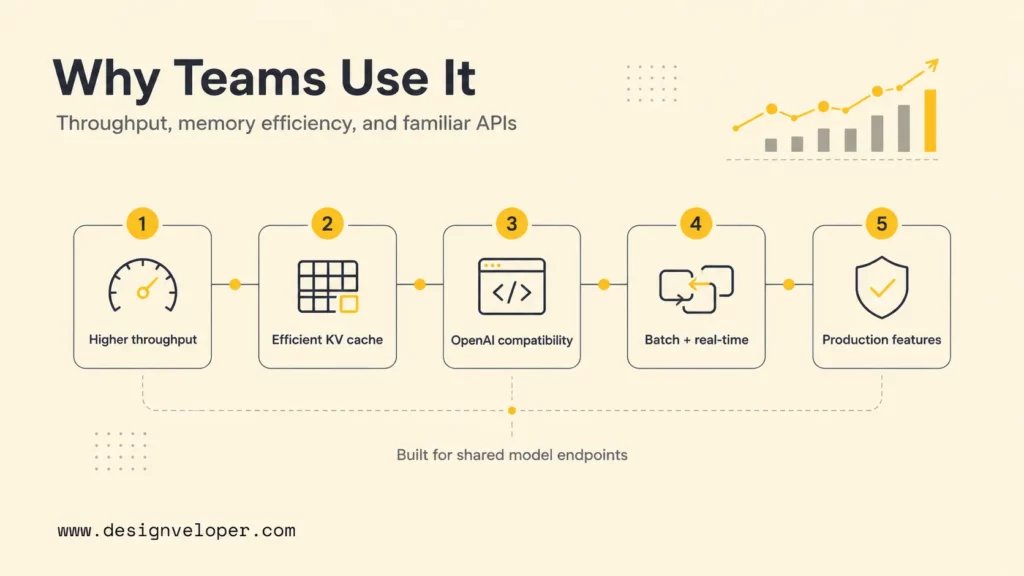
vLLM is an open-source inference and serving engine that loads language models and generates responses for Python programs or API clients. It sits between a model’s weights and the application: the model provides the learned capability, while vLLM handles inference execution, request scheduling, memory management, and serving interfaces.
For example, a retrieval-augmented generation (RAG) application can retrieve relevant passages, send the prompt and context to a vLLM endpoint, and use the model’s response in its own workflow. vLLM does not supply the application’s business logic, access policy, or source documents; those remain the responsibility of the system built around it.
The project supports multiple model architectures and hardware paths, but compatibility depends on the vLLM release, model, and accelerator. Check the official vLLM Quickstart before choosing a host or building an environment.
For a deeper dive:
- How To Build A RAG Chatbot: Architecture, Steps, And Best Practices
- How To Build A RAG System: Step-By-Step (New Guide)
- Build A RAG Agent With LangChain: Step-By-Step Tutorial
Why Developers Use vLLM
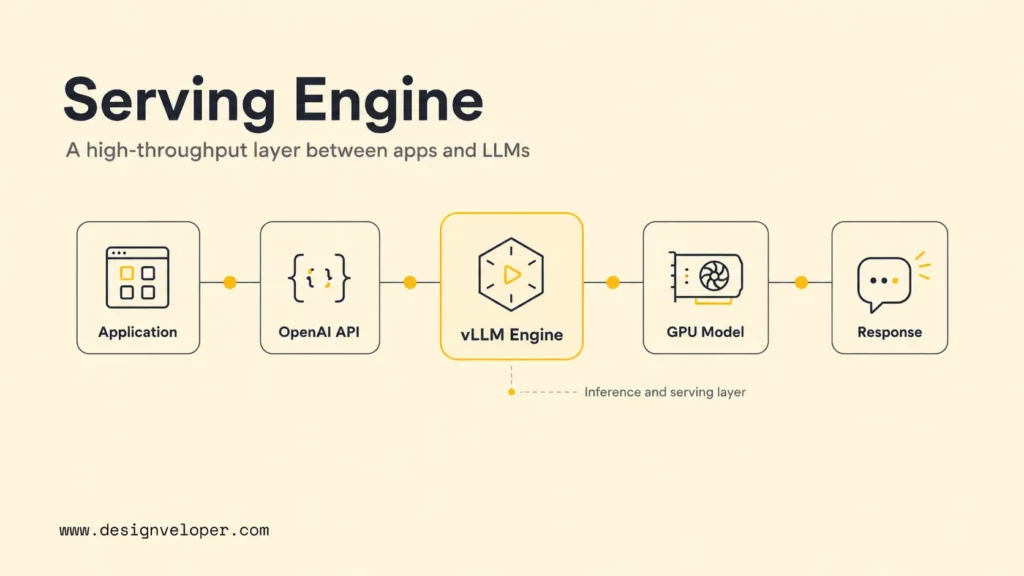
Teams use vLLM when they need to serve a compatible language model through a programmable interface and want more control over inference than a simple local runner provides. Whether it is the right choice depends on workload and operations, not on the engine name alone.
- Concurrent requests: request scheduling and continuous batching can help keep an accelerator busy when requests arrive at different times and have different lengths.
- Memory management: PagedAttention manages key-value (KV) cache blocks to reduce avoidable memory fragmentation and support more active sequences when the model and workload fit.
- Application integration: the OpenAI-compatible server offers a familiar API shape for supported endpoints, which can simplify client integration. Compatibility does not guarantee feature parity with a hosted provider.
- Deployment control: self-hosting can give a team control over model selection, serving configuration, and where inference runs, while adding infrastructure and security responsibilities.
- Performance tuning: operators can measure and adjust options such as context limits, parallelism, and supported quantization formats against their own quality and latency needs.
The original PagedAttention paper reported workload-specific throughput gains against Orca baselines on ShareGPT-style request traces. Those research results explain the motivation for vLLM; they are not a current benchmark against every inference server, model, GPU, or traffic pattern. Measure your own baseline before making a performance or cost decision.
How vLLM Works
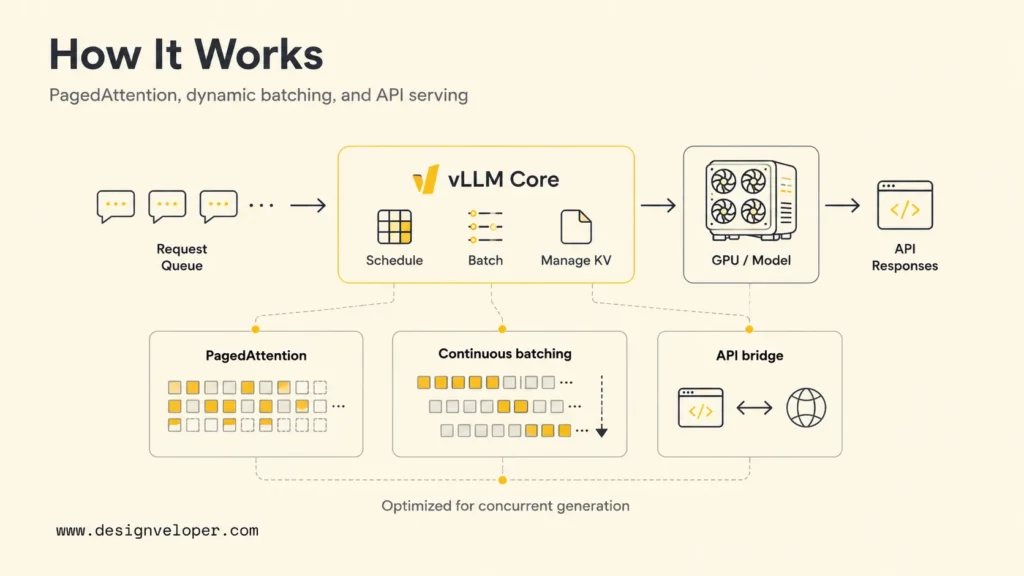
vLLM coordinates model execution, memory allocation, and request scheduling so a serving process can handle multiple generation requests. Three ideas explain its role: the KV cache, continuous batching, and the API layer that connects the engine to applications.
PagedAttention and the KV Cache
During autoregressive generation, a transformer stores attention keys and values in a KV cache. This avoids recomputing the whole sequence for every next token. Long contexts and concurrent requests can make the cache a major GPU memory consumer.
PagedAttention allocates KV cache memory in blocks rather than requiring each request to occupy one large contiguous region. This can reduce fragmentation and let the engine manage variable-length sequences more flexibly. The actual capacity still depends on model size, context length, available memory, and runtime configuration.
Continuous Batching
Continuous batching lets the scheduler add new requests as other sequences finish instead of waiting for every request in a fixed batch to complete. That can improve accelerator utilization when requests have different prompt and generation lengths.
It is most useful to test this behavior under a representative request mix. A service handling brief classifications may behave very differently from one generating long answers or processing large retrieved contexts.
OpenAI-Compatible Serving
vLLM can expose supported endpoints with an OpenAI-style request format, allowing applications to send prompts over HTTP rather than importing the Python engine directly. The official online serving documentation describes the current server options and supported APIs.
“OpenAI-compatible” describes an interface, not identical behavior. Test the model’s chat template, tool calling, structured outputs, streaming, context limits, and error handling before switching an existing client to a self-hosted endpoint.
How to Install vLLM
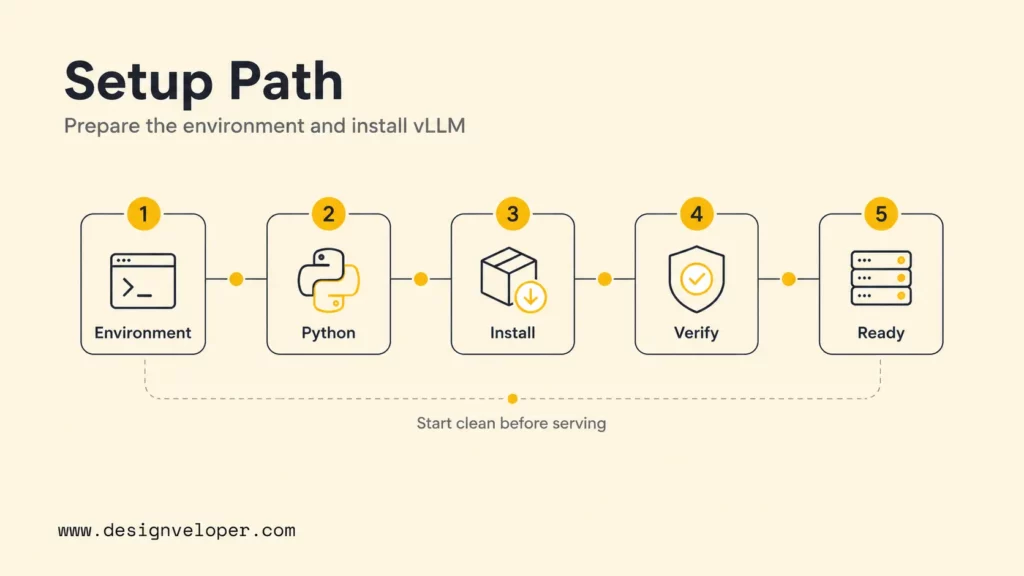
Install vLLM in a clean environment using the path documented for your Python version and accelerator. The commands below reproduce the official Quickstart path checked on September 28, 2026; they are a starting point, not a universal installer for every backend.
Step 1: Check Python and Hardware Support
Before installing, confirm the target machine, Python version, driver stack, and accelerator backend against the official GPU installation guide. vLLM documents distinct paths for hardware such as NVIDIA CUDA, AMD ROCm, Intel XPU, and other supported platforms. Do not assume that a command prepared for one backend will install the correct dependencies on another.
For production, record the vLLM release, Python version, base image, accelerator runtime, model revision, and any quantization format. Pin these inputs in the build and test them together before deployment.
Step 2: Create a Python 3.12 Environment
The current Quickstart uses Python 3.12 with uv. Create and activate an isolated environment:
mkdir vllm-demo
cd vllm-demo
uv venv --python 3.12 --seed
source .venv/bin/activate
The activation command above is for a POSIX shell. If your environment differs, use the activation instructions for that shell and operating system.
Step 3: Install the Quickstart Build
For the documented automatic PyTorch backend selection, install with:
uv pip install vllm --torch-backend=autoFor another accelerator, follow the matching backend instructions rather than assuming automatic selection is appropriate. The installation guide is the source of truth for the release-specific command and compatibility constraints.
Step 4: Verify the Environment
First check that the package imports inside the environment you intend to use:
python -c "import vllm; print(vllm.__version__)"A successful import does not prove that the model can load on the target device. Run the small offline test below to check model access, accelerator initialization, and generation. If that fails, compare the installed build with the documented backend, inspect driver/runtime compatibility, and check model access and available memory.
Run Offline Batch Inference with vLLM
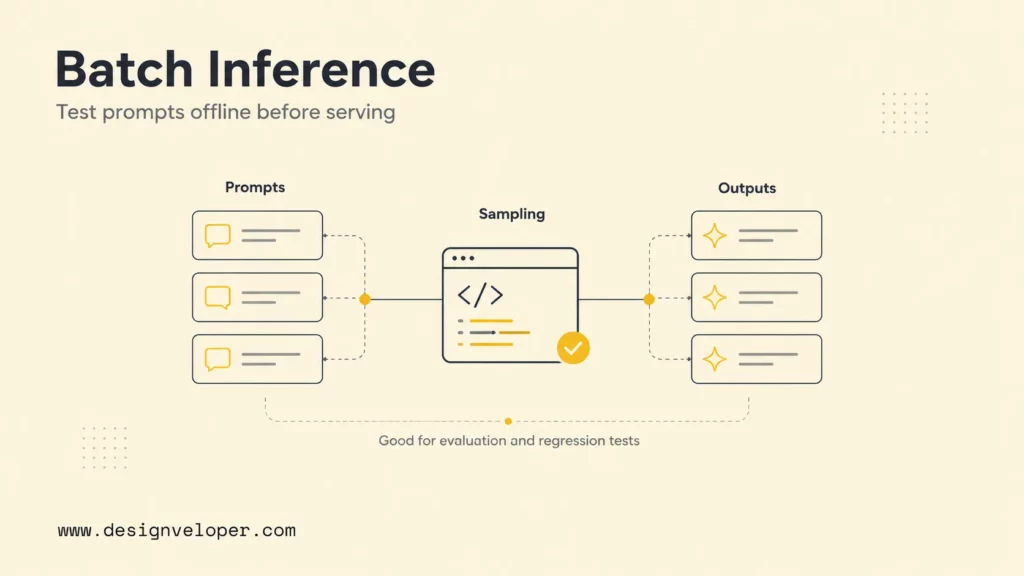
Offline inference calls the engine from Python without starting an HTTP server. It is a useful first test for prompt evaluation, batch summarization, data preparation, and regression checks because it isolates model execution from API and network configuration.
Create a Small Generation Test
Save the following as offline_batch.py. The example uses a small instruction model to keep the initial test modest; check its license, availability, hardware requirements, and vLLM compatibility before using another model.
from vllm import LLM, SamplingParams

llm = LLM(model="Qwen/Qwen2.5-0.5B-Instruct")

prompts = [
    "Explain what an inference server does in two sentences.",
    "List three checks to make before exposing a model API.",
]

sampling_params = SamplingParams(
    temperature=0.2,
    top_p=0.95,
    max_tokens=160,
)

outputs = llm.generate(prompts, sampling_params)

for output in outputs:
    print("PROMPT:", output.prompt)
    print("OUTPUT:", output.outputs[0].text)
    print("-" * 60)
Run the script with the active environment:
python offline_batch.pyChoose Sampling Parameters for the Task
Sampling settings change how the model selects tokens; they do not make an answer factually correct. Temperature controls sampling variability, while top_p limits the candidate token distribution and max_tokens caps output length. Establish settings with task-specific evaluation rather than treating a low temperature as an accuracy guarantee.
- For classification or constrained extraction, test whether the model follows the required format across representative and edge-case inputs.
- For user-facing generation, assess helpfulness, refusal behavior, latency, and output length alongside factuality.
- For RAG, test relevant, missing, stale, and conflicting retrieved context; measure whether the model uses or appropriately rejects the evidence.
Save a small evaluation set and expected checks before changing models, prompts, sampling settings, or quantization. A script that completes without an error is only a runtime smoke test, not evidence that the output is suitable for users.
Serve vLLM as an OpenAI-Compatible API
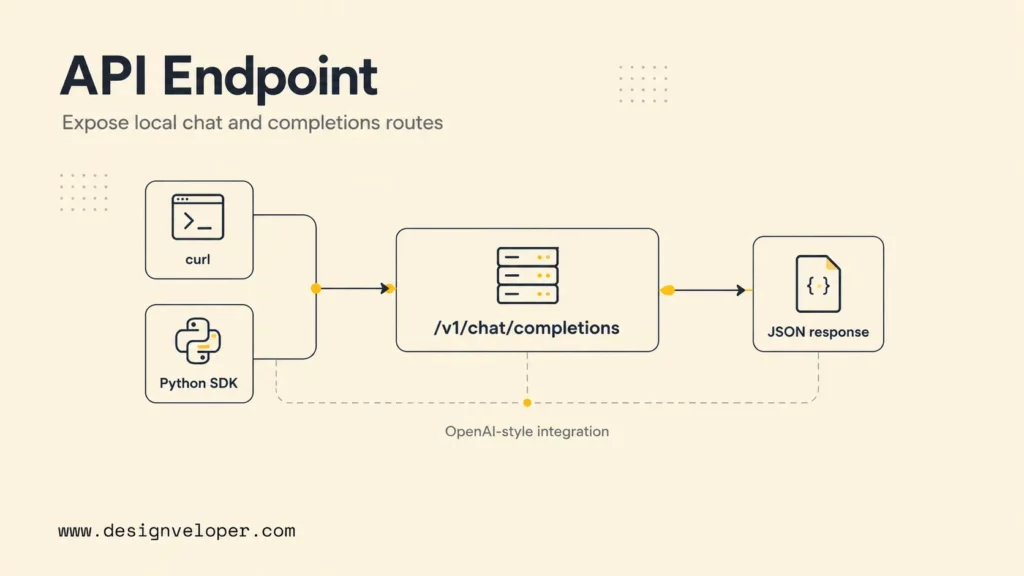
Start the API server after the offline model test works. This separates model-loading problems from client and network problems, and gives an application a reusable endpoint for supported requests.
Launch the Server
For a local test, bind to the loopback interface so the endpoint is not exposed to other machines by default:
vllm serve Qwen/Qwen2.5-0.5B-Instruct --host 127.0.0.1 --port 8000For a container or remote service, networking and bind addresses depend on the deployment. Do not expose a test server directly to the public internet. Put production traffic behind an appropriate network boundary and configure authentication, TLS, rate limits, request-size limits, and logging at the serving or gateway layer.
Send a Test Request with curl
In another terminal, check the chat-completions route independently of your application code:
curl http://127.0.0.1:8000/v1/chat/completions \
  -H "Content-Type: application/json" \
  -d '{
    "model": "Qwen/Qwen2.5-0.5B-Instruct",
    "messages": [
      {"role": "user", "content": "Explain vLLM in two sentences."}
    ],
    "temperature": 0.2,
    "max_tokens": 100
  }'
If the request fails, check whether the server has finished loading, the model identifier matches the served model, the route and JSON are valid, and the process has enough memory. Some models also require access approval or a token to download.
Connect an OpenAI Python Client
A client that supports the OpenAI SDK interface can point to the local server by setting base_url. The example key below is a placeholder accepted by some local setups; it is not a substitute for configuring authentication on the endpoint.
from openai import OpenAI

client = OpenAI(
    base_url="http://127.0.0.1:8000/v1",
    api_key="local-test",
)

response = client.chat.completions.create(
    model="Qwen/Qwen2.5-0.5B-Instruct",
    messages=[
        {"role": "user", "content": "Give one use case for an inference server."}
    ],
    max_tokens=120,
)

print(response.choices[0].message.content)
Before switching an application, compare behavior that affects its contract: streaming, tool calls, structured response formats, error codes, token limits, and model-specific chat templates. Teams integrating models into a broader AI application should evaluate the full user workflow, not just whether the SDK request returns text.
For a deeper dive:
- A Practical Guide To AI Agent Architecture With Diagrams
- What Is AI Integration? How to integrate AI successfully?
- AI In Software Development: Changing How Software Gets Built
Tune vLLM for Production Performance
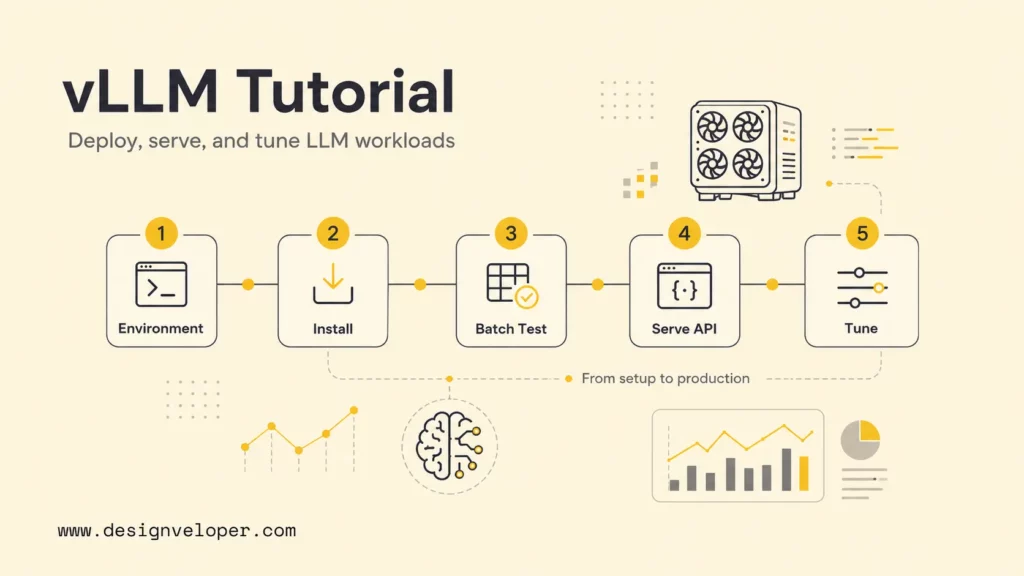
Tune against a defined workload rather than changing flags until one test looks faster. Record the model and revision, accelerator, prompt and context lengths, output limit, quantization, concurrency, and client behavior. Then compare the candidate with the current serving option under the same conditions.
Choose a Benchmark That Matches the Application
Run repeated tests with a representative mix of short and long prompts, expected output lengths, and peak concurrency. Keep the model, hardware, software versions, sampling configuration, and request distribution constant. Report warm-up separately and include tail latency, not only the average.
| Measure | What to record | Decision it supports |
|---|---|---|
| Latency | Time to first token and end-to-end response time at p50, p95, and p99. | Whether interactive requests meet the product’s response target. |
| Throughput and queueing | Requests per second, output tokens per second, active sequences, queue time, and errors at target concurrency. | Whether the service handles expected traffic without unacceptable waiting or failure. |
| Quality and behavior | Task pass rate, groundedness where relevant, structured-output validity, refusal behavior, and regression results. | Whether a speed or memory change preserves the required user outcome. |
| Resource and operating cost | GPU memory headroom, utilization, accelerator hours, startup/recovery time, and operator effort. | Whether self-hosting is preferable to the current runtime or managed service. |
Use this same test to compare vLLM with Ollama, another serving engine, or a managed API. For a focused comparison, see Ollama vs vLLM: Which Is Better for Your Work Projects? Keep the model, quantization, hardware, context, and request mix as similar as possible, then include quality and operational effort in the decision.
Use Tensor Parallelism Only When It Helps
Tensor parallelism splits model computation across multiple GPUs. It can make a model fit when one device lacks enough memory, but communication between devices adds overhead and results depend on the GPU topology and workload. The vLLM memory guidance documents relevant configuration options.
vllm serve meta-llama/Llama-3.1-8B-Instruct \
  --tensor-parallel-size 2
Treat this as an illustrative command, not a recommendation to use two GPUs in every deployment. Confirm model access, hardware availability, supported configuration, and benchmark results on the intended host.
Evaluate Quantization for Memory and Quality
Quantization represents model values at lower precision to reduce memory use and can change performance. The result depends on the model, format, hardware, and supported vLLM path. Check the official quantization documentation, then evaluate the selected format on task-specific prompts and edge cases before using it with real traffic.
Set Memory and Context Limits Deliberately
The gpu_memory_utilization setting controls the share of GPU memory vLLM targets for its executor and cache. Raising it can leave less headroom for other processes, while an oversized context limit can increase memory pressure. Adjust one setting at a time and watch for out-of-memory errors, queue growth, latency changes, and throughput.
vllm serve Qwen/Qwen2.5-7B-Instruct \
  --max-model-len 4096 \
  --gpu-memory-utilization 0.85
The example values are not universal defaults; confirm flag support for the chosen release and model. Set the context limit from the application’s actual maximum need, with headroom for prompt templates and retrieved content.
Monitor the Service and Define a Go-Live Gate
vLLM exposes serving metrics that operators can use with monitoring systems. The official metrics documentation describes available signals; choose alerts that map to user impact, such as rising queue time, latency, errors, or memory pressure.
Before go-live, verify these release checks:
- Load and quality tests use representative requests and the intended peak concurrency.
- Authentication, network access, TLS, rate limits, and request-size limits are enforced where appropriate.
- Metrics, logs, health checks, alert ownership, and incident response are in place.
- Model files and cache behavior are understood; the team can restart, roll back, or switch to a fallback.
- Data retention, privacy, prompt logging, and user permissions match the application’s requirements.
Common vLLM Problems and Troubleshooting
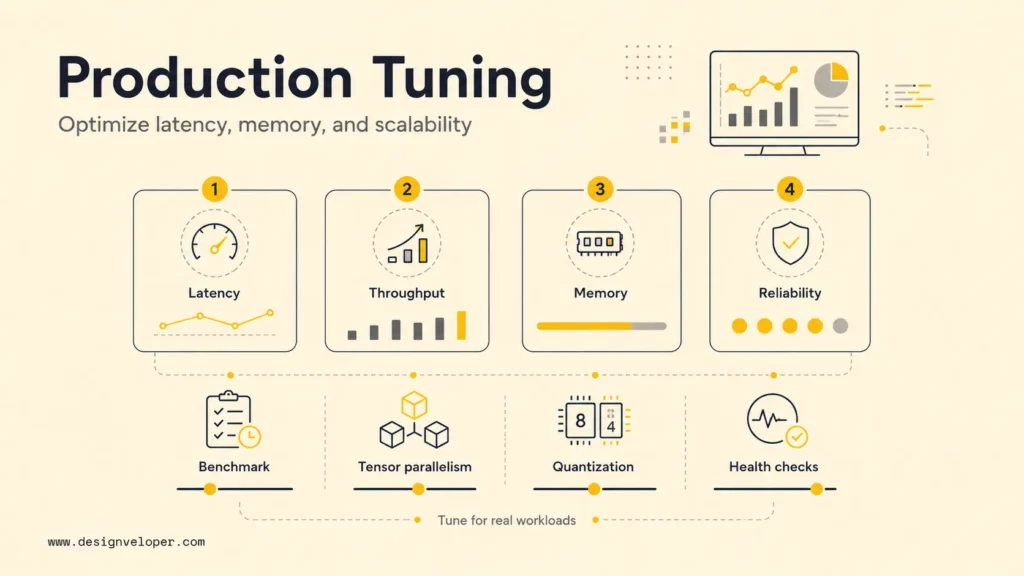
Most first-run problems come from a mismatch between the installed backend and the machine, model access or compatibility, memory limits, or a request sent before the server is ready. Change one variable at a time so the cause remains identifiable.
| Symptom | Likely cause | First checks |
|---|---|---|
| Installation or import fails | Python, wheel, driver, runtime, or accelerator mismatch. | Recheck the release-specific installation guide, environment activation, and backend path. |
| Model does not load | Unsupported architecture, gated model, missing credentials, or insufficient disk/accelerator memory. | Confirm model access and revision; try a smaller supported model and inspect startup logs. |
| Out-of-memory error | Model, context, or concurrent sequences exceed available memory. | Reduce context or concurrency, review memory settings, or evaluate a supported quantization/multi-GPU path. |
| API returns an error | Wrong route or model name, malformed request, or server still loading. | Test with curl, check the server log, and match the request model to the served model. |
| Startup is slow on each run | Weights are downloaded repeatedly or cache storage is ephemeral. | Check model-cache configuration and persist or prefetch weights appropriately for the deployment. |
When changing versions, hardware, model, quantization, or server flags, rerun the same small smoke test first and then the application benchmark. A result on one GPU backend does not establish compatibility or performance on another.
When vLLM Is the Right Choice
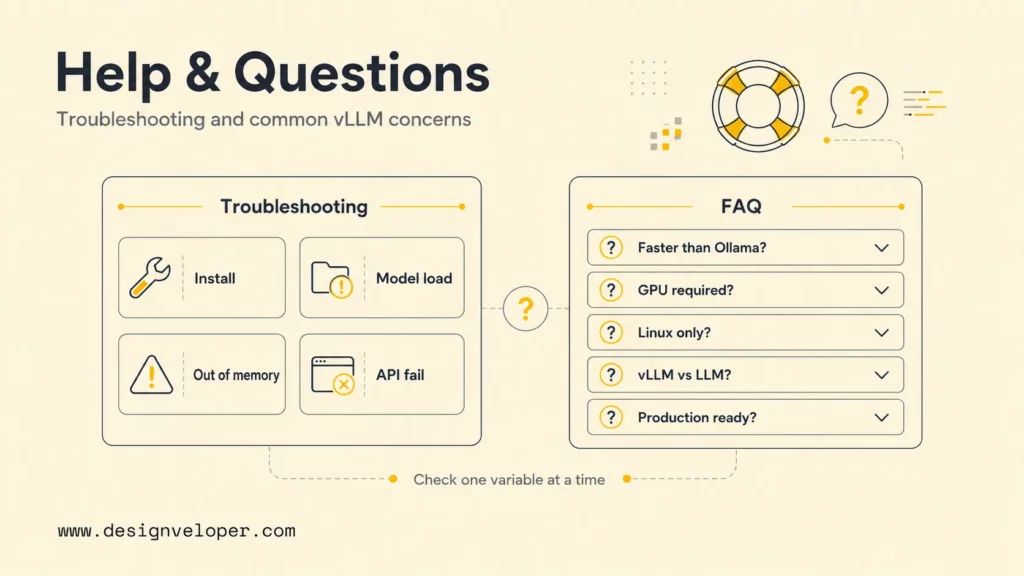
vLLM is a reasonable candidate when an application needs a self-hosted model endpoint, the model and hardware are supported, and measured concurrency or deployment requirements justify operating an inference service.
- A shared internal or customer-facing AI service has a predictable need for concurrent requests.
- The team needs control over where a model runs or how it connects to private application data.
- There is an owner for accelerator provisioning, monitoring, upgrades, security, and incident response.
- A representative benchmark shows a worthwhile fit for the product’s latency, quality, and operating-cost targets.
For systems that retrieve documents before generation, understand the retrieval pipeline and its quality separately from the serving engine. An AI integration plan should also account for where the model sits in the workflow, what data it can access, and how its response is checked.
For a deeper dive:
- RAG Pipeline Diagram: Components, Workflow, And Production Design
- What Is A Context Window In AI? How LLMs Process And Retain Information
- What Are AI Hallucinations? Why They Happen & How To Reduce Them
When a Simpler Runtime May Be Better
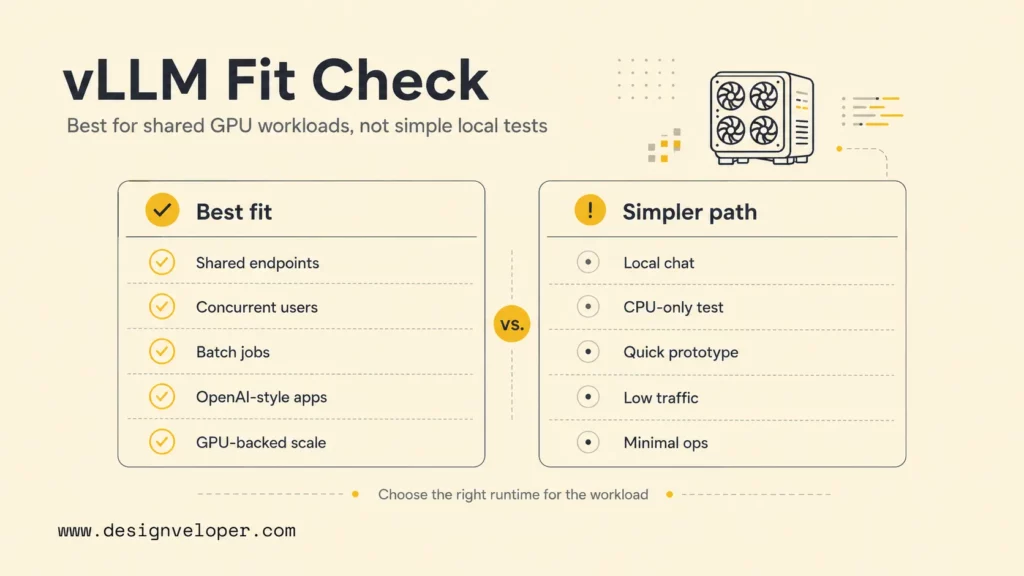
vLLM may add unnecessary setup when the goal is a quick local experiment, a low-traffic prototype, or a model workflow that does not need a dedicated serving layer. In those cases, a simpler local runtime or managed API can reduce time spent on deployment and maintenance.
Choose the least complex option that meets the requirements, then revisit the decision when real usage reveals a constraint. Compare setup effort, compatible models, hardware support, quality, latency, privacy, cost, and operational ownership. A measured comparison is more useful than assuming one runtime is always faster.
FAQs About vLLM
Is vLLM faster than Ollama?
There is no workload-independent speed winner. vLLM is designed for high-throughput, concurrent serving, while Ollama emphasizes a straightforward local model workflow. Compare the same model, hardware, quantization, context length, and request mix, then measure latency, throughput, output quality, and setup effort.
Does vLLM require a GPU?
No. vLLM has CPU and other hardware paths, but accelerator-backed serving is a common choice when throughput matters. Check the installation guide for the backend supported by the release and model you plan to use.
Does vLLM only work on Linux?
No, but Linux is a common production environment for GPU serving. Other operating systems and accelerator paths can have different support limits, so verify the current compatibility documentation before choosing Windows, WSL, or Apple hardware.
What is the difference between vLLM and an LLM?
An LLM is the model that generates text; vLLM is software that runs compatible models for inference and can serve them to applications. For example, a Qwen or Llama model supplies learned behavior, while vLLM loads and serves that model.
Is vLLM production-ready?
vLLM can be used in production when the model, hardware, release, and deployment have been validated for the workload. Production readiness also requires application-level quality evaluation, security, monitoring, capacity planning, rollback, and data governance; installing the server alone does not provide those controls.
If you are taking a model-serving prototype into a larger AI product, Designveloper’s AI development services can help assess the surrounding application, integration, evaluation, and deployment requirements.
Also published on

Share post on









Related Articles


How To Build A RAG System: Step-By-Step (New Guide)
How To Build A RAG System: Step-By-Step (New Guide) Published October 19, 2026
Agentic AI Single Vs. Multi-Agent Systems: When To Use Each One
Agentic AI Single Vs. Multi-Agent Systems: When To Use Each One Published October 19, 2026
Is Vibe Coding Legal? Ownership, Copyright, and Release Risks
Is Vibe Coding Legal? Ownership, Copyright, and Release Risks Published October 16, 2026