
















Responsive Web Design Principles: 10 Practical Rules For Better UX

KEY TAKEAWAYS:
- Let content set the layout. Start with flexible columns, then add a breakpoint only when the task or content stops fitting; use these web design foundations to keep the experience coherent.
- Choose the right responsive rule. Use viewport media queries for page-wide changes and container queries when a reusable component must respond to its own available space.
- Design for real input. Keep controls comfortable to tap, usable with a keyboard, and legible when people zoom or enlarge text.
- Serve media deliberately. Use
srcsetandsizesfor image candidates, reserve<picture>for art direction or format alternatives, and avoid lazy-loading a likely above-the-fold hero. - Test behavior, not device labels. Check intermediate widths, narrow reflow, orientation, keyboard focus, touch, and a real user task before release.
A product page can look polished at 1440 pixels yet fall apart when cards compress, labels wrap, or the primary action drops below the task. The problem is rarely solved by adding a breakpoint for every popular phone. Effective responsive web design starts with flexible foundations, lets content determine when a layout must change, and preserves readable, usable interactions as the viewport narrows. This guide connects four technical foundations with six practical implementation rules, then applies them to reusable components and a repeatable testing workflow.
The Core Principles of Responsive Web Design
The four foundations below solve different layout problems: fluid grids handle available space, flexible media prevents overflow, responsive queries adapt composition, and mobile-first design prioritizes the essential task.
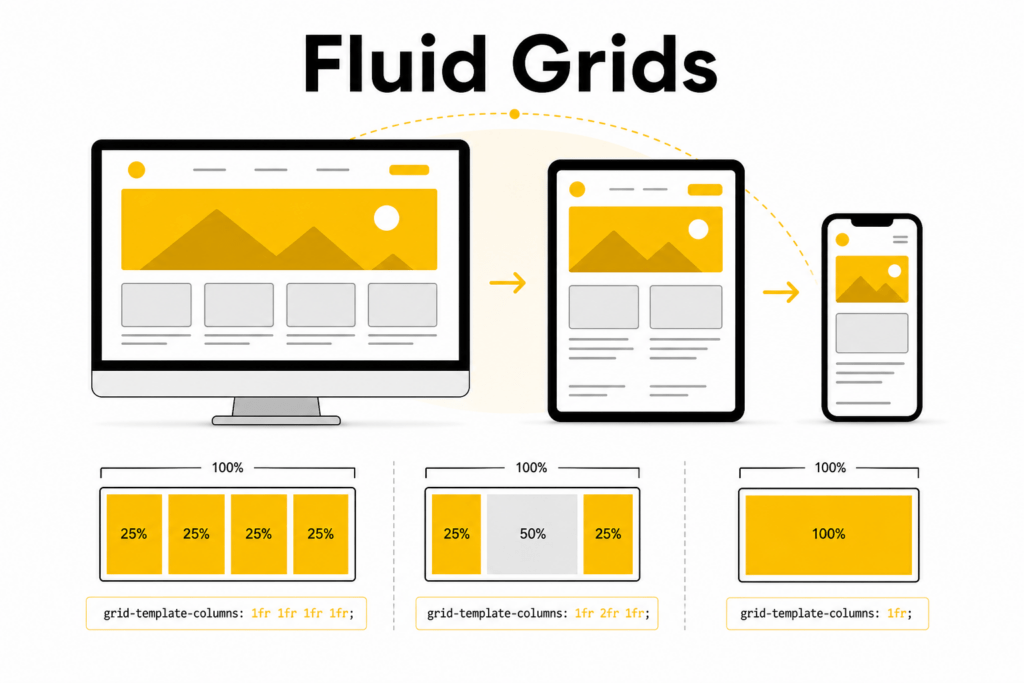
1. Build Fluid Grids Around Content
A fluid grid uses relative tracks and flexible gaps instead of forcing every screen into fixed pixel widths. This lets a layout use the space available while preserving a useful minimum width for each card, form, or text column. For example, a product catalog can move from one column to several without hard-coding separate rules for named phone and tablet models.
CSS Grid can create that behavior with a minimum track size. The minimum below is illustrative: choose it by checking the actual card content, not by copying the number blindly.
.card-grid {
  display: grid;
  grid-template-columns: repeat(auto-fit, minmax(min(100%, 17rem), 1fr));
  gap: 1.25rem;
}
auto-fit lets tracks use the available width, while minmax() prevents a card from shrinking below its chosen content threshold. When explaining a design decision to a team, compare it with a few responsive layout examples and validate the same component in its narrowest and widest containers.
Fluid does not mean stretching every element. Keep long-form text at a comfortable measure, allow navigation items to wrap or collapse intentionally, and use a maximum width when a line becomes difficult to scan.
Further reading:
- Web Design Process: 7 Steps That You Need to Know
- 30 Web Design Trends and Tips
- What Is CSS? How It Styles Websites And Where AI CSS Tools Fit In
2. Let Media Fit Its Container
Images, videos, and embedded frames can create horizontal overflow when their intrinsic dimensions are wider than the column that contains them. A simple baseline makes common media shrink with its parent while preserving its natural proportions:
img,
video {
  max-width: 100%;
  height: auto;
}

iframe {
  max-width: 100%;
  aspect-ratio: 16 / 9;
}
Use object-fit: cover only when cropping is intentional, such as a consistent card thumbnail. For diagrams, product screenshots, or other media where the full content matters, preserve the complete image or provide a way to inspect it at a larger size. Check embeds separately: a flexible iframe still needs a sensible height and a layout that works at narrow widths.
3. Use Viewport and Container Queries for Different Jobs
A viewport media query responds to the browser window, so it is useful when the overall page needs to change—for example, when a desktop navigation becomes a compact menu. A container query responds to a component’s own allocated space, which is useful when the same card appears in both a wide grid and a narrow sidebar.
.feature-card-list {
  display: grid;
  grid-template-columns: 1fr;
}

@media (min-width: 48rem) {
  .feature-card-list {
    grid-template-columns: repeat(2, minmax(0, 1fr));
  }
}

.card-shell {
  container-type: inline-size;
}

@container (min-width: 42rem) {
  .feature-card {
    display: grid;
    grid-template-columns: 10rem minmax(0, 1fr);
  }
}
The values shown are starting points, not universal breakpoints. Test the real content in its host layout and move each threshold to the point where the current arrangement becomes cramped or wasteful. A container query also needs a query container; without container-type on an ancestor, the component rule has nothing to measure.
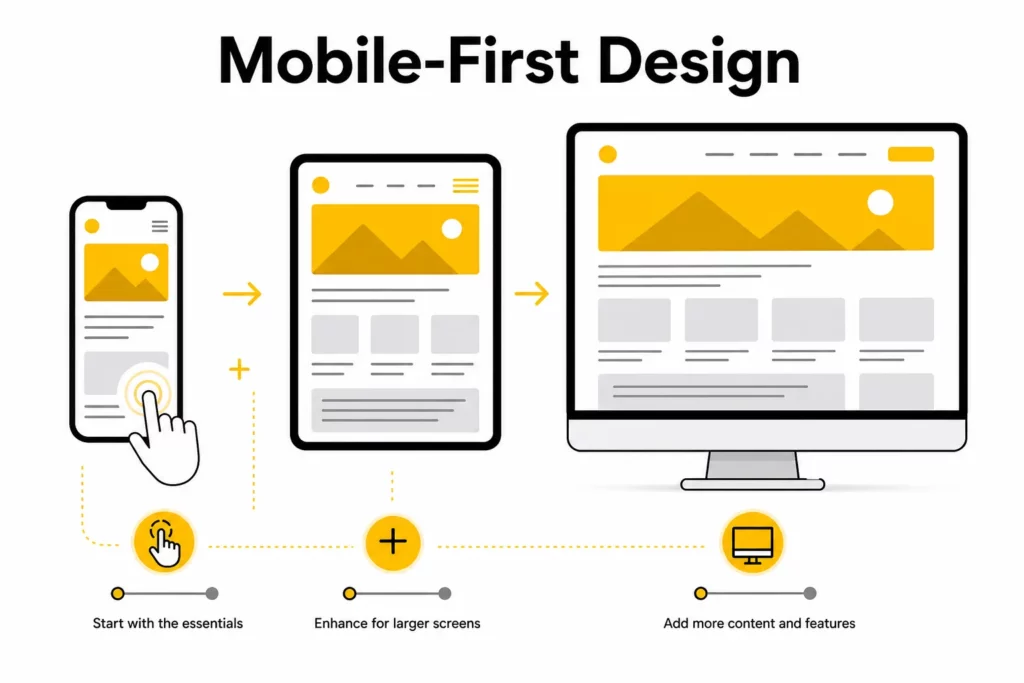
4. Start With the Narrowest Critical Workflow
Mobile-first design means establishing a clear, usable base layout before adding enhancements for more available space. It is especially useful when a key flow—such as searching a catalog, completing a short form, or booking an appointment—must remain easy to follow on a narrow screen. Wider layouts can then add columns or supporting detail without pushing the primary action out of view.
Do not treat “mobile-first” as “mobile-only” or as proof that mobile traffic dominates for every audience. Start from the constraints that matter to the product, then verify the experience at narrow, intermediate, and wide widths. The same content hierarchy should remain understandable even when the visual arrangement changes.
Responsive Web Design Best Practices
The technical foundations make layouts flexible; these six practices help teams apply them consistently across real pages and components.
1. Set a Real Viewport
Mobile browsers need the viewport instruction to render the page at the device’s CSS width rather than scaling down a desktop-sized canvas. Include this tag in the document head of the site being built:
<meta name="viewport" content="width=device-width, initial-scale=1">This is an instructional code example, not metadata for this article fragment. Do not disable pinch zoom with user-scalable=no or a restrictive maximum-scale; responsive behavior should work alongside users’ browser zoom and text-size preferences.
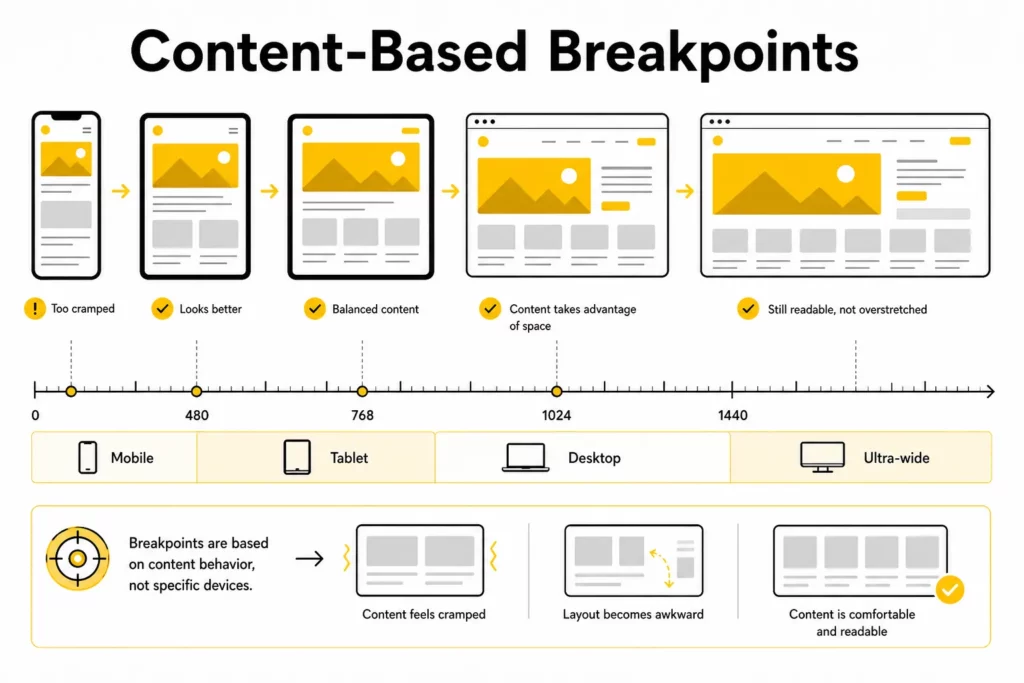
2. Set Breakpoints When Content Stops Working
A breakpoint is a response to a layout constraint, not a label for a particular phone. Resize the page gradually and note when a heading wraps awkwardly, a control becomes difficult to use, or columns no longer have enough room. Put the rule near that point, then test just below and above it.
For instance, a feature list may remain in one column until each item can keep a readable text measure and an adequate gap. The threshold should come from that content and the surrounding layout. If viewport, breakpoint, and other layout terms are unfamiliar, a web design glossary can help teams use them consistently.
.feature-list {
  display: grid;
  grid-template-columns: 1fr;
  gap: 1rem;
}

@media (min-width: 46rem) {
  .feature-list {
    grid-template-columns: repeat(2, minmax(0, 1fr));
  }
}
The 46rem value is only an example. A two-column layout may need a different width when the text is longer, the gap is larger, or a sidebar reduces the available space.
3. Design Touch-Friendly Interactions
Give buttons, menu controls, and other frequent touch targets enough size and separation to reduce accidental taps. A practical product-design target is often around 48 by 48 CSS pixels where the interface allows it, but that is guidance—not the single WCAG 2.2 AA minimum.
WCAG 2.2 Level AA Success Criterion 2.5.8 sets a 24 by 24 CSS pixel minimum for pointer targets, subject to defined exceptions such as sufficient spacing. Level AAA Success Criterion 2.5.5 uses 44 by 44 CSS pixels, also with exceptions. Check the applicable conformance target and the product’s platform guidance rather than treating one number as universal. See the W3C explanations for Target Size (Minimum) and Target Size (Enhanced).
.menu-button {
  min-inline-size: 48px;
  min-block-size: 48px;
}
Do not rely on hover as the only way to reveal an action. Provide an equivalent keyboard and touch path, make focus visible, and check that sticky bars or menus do not cover the control a person is trying to reach.
4. Scale Type Without Breaking the Layout
Fluid type can make headings and spacing respond gradually between chosen minimum and maximum values. CSS clamp() is useful for that bounded scaling, but it does not replace testing: long words, translated copy, and user text enlargement can still expose overflow.
.page-title {
  font-size: clamp(2rem, 1.4rem + 2.5vw, 3.5rem);
  line-height: 1.1;
}
Keep body text comfortable at every width, avoid fixed-height text containers, and verify that larger text does not overlap buttons or hide information. A fluid value should preserve hierarchy, not force every screen to use a different font size.
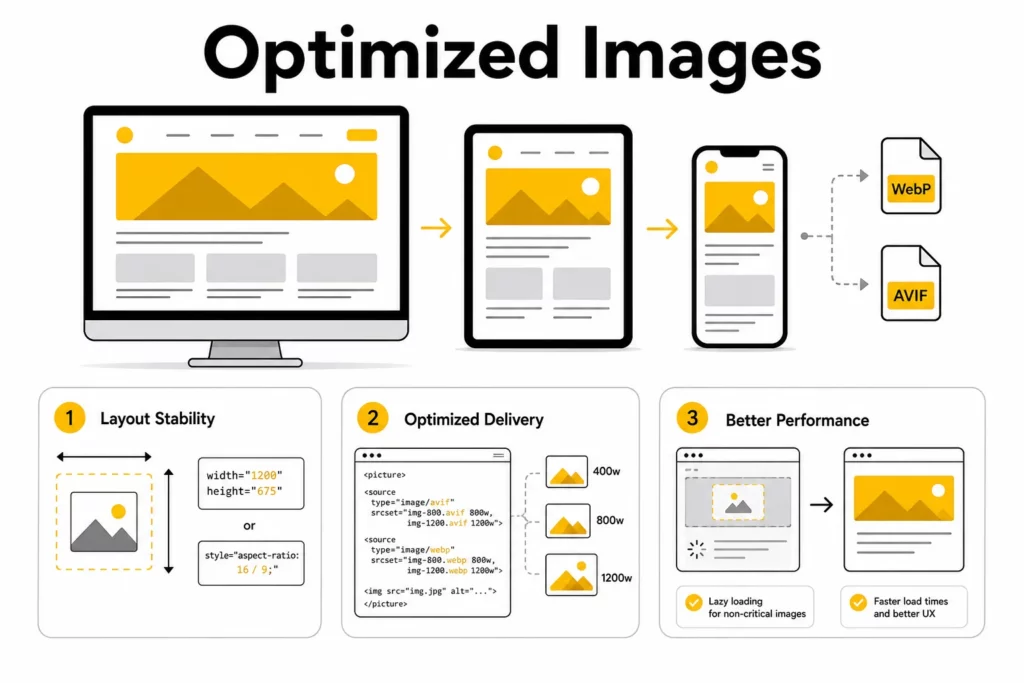
5. Serve Images That Fit Their Display
Responsive images address two related but different needs. Use srcset and sizes to let the browser choose among versions of the same image based on the rendered slot and display resolution. Use <picture> when the design needs art direction—such as a tighter crop on a narrow screen—or alternative formats. MDN’s guide to responsive images in HTML explains the distinction.
<img
  src="card-640.webp"
  srcset="card-320.webp 320w, card-640.webp 640w, card-960.webp 960w"
  sizes="(min-width: 60rem) 33vw, (min-width: 40rem) 50vw, 100vw"
  width="960"
  height="640"
  alt="Product cards arranged in a responsive grid"
  loading="lazy">
Here, srcset lists width-based image candidates and sizes describes the likely CSS slot width. Adjust the slot conditions to match the real layout; sample values copied into a different grid can cause the browser to download an unsuitable file.
For a different crop at a narrow width, art direction can use <picture>:
<picture>
  <source media="(max-width: 40rem)" srcset="product-portrait.webp">
  <img src="product-landscape.webp"
       width="1200" height="675"
       alt="Product interface shown in its full desktop context">
</picture>
Set intrinsic width and height so the browser can reserve space before an image loads and reduce unexpected layout movement. Lazy-load images that start below the fold; do not add loading="lazy" by default to a hero or another likely Largest Contentful Paint image. Use fetchpriority="high" only when measurement confirms that the image is a critical LCP candidate. For additional guidance, see web.dev’s notes on reducing layout shifts.
6. Reveal Secondary Detail Without Hiding the Task
Progressive disclosure can keep a compact interface focused by moving secondary filters, optional settings, or supporting explanations behind a clear control. Use it only for information that is genuinely secondary. Keep prices, required instructions, errors, and the next action visible when people need them to complete the task.
The control should communicate what it reveals, work with a keyboard and assistive technology, and preserve the user’s place when it opens. Collapsing content just to make a mobile screenshot look cleaner is not responsive design if it makes the task harder to finish.
Apply Responsive Rules at the Component Level
Reusable components often appear in places with different amounts of space. Their behavior should therefore follow the container and the information each instance must show—not only the browser’s overall width.
Give Reused Components Their Own Responsive Rules
A component-level rule makes a card, navigation region, or form usable wherever the product places it. This is especially valuable in a site assembled from shared patterns: the same component can appear in a main content column, a sidebar, and a modal. When a team chooses among front-end frameworks, the framework can influence how components are organized, but CSS still needs an explicit responsive behavior and a test in each host context.
Test the Same Card in a Sidebar and a Grid
Imagine a product card reused in a narrow sidebar and a three-column catalog. In the sidebar, the image may need to sit above the title, with the price and primary action kept visible. In a wide catalog card, the image can sit beside the copy and secondary details can appear. The decision is not “mobile versus desktop”; it is which content fits in each available width without weakening the task.
- Keep the title, essential status, price, and main action available in both placements.
- Move optional metadata below the main action before shrinking text or controls.
- Check long product names, translated labels, and validation messages—not only ideal sample content.
- Use container queries when a shared component must change independently of the page shell.
Keep the Rule Close to the Component
Document the component’s minimum comfortable width, what changes when it crosses that point, and what must remain visible. This gives designers, developers, and reviewers a shared acceptance rule. It also prevents a page-level breakpoint from changing a reusable card in a context where the card is still narrow.
Common Responsive Design Mistakes and How to Fix Them
Responsive defects are easier to prevent when each warning comes with a correction. Use this checklist during implementation and review; for broader patterns, compare it with these web design mistakes to avoid.
- Scaling down a fixed desktop canvas: replace fixed page widths with fluid tracks and a sensible max-width; allow content to wrap before it becomes unreadable.
- Choosing breakpoints by device names: resize the real page and add a breakpoint only where content, controls, or hierarchy stop working.
- Making hover the only interaction: provide keyboard focus and touch-accessible controls with an equivalent action.
- Sending oversized or unstable images: use appropriate candidates, set intrinsic dimensions, and lazy-load only media below the initial viewport.
- Hiding information that completes the task: collapse optional detail, but keep the primary action, required guidance, and meaningful feedback accessible.
- Testing only one phone and one desktop size: check intermediate widths and the actual component placements used by the product.
How to Test a Responsive Layout Before Release
A layout is not ready just because it looks correct at a few preset widths. Test the content, input method, and user task across a range of conditions, then record issues so another person can reproduce them. A web design and testing toolkit can help, but browser tools do not replace checks on real devices.
- Resize continuously: inspect widths just below and above each breakpoint, plus an intermediate width that is not a named device preset.
- Check narrow reflow and zoom: test at an equivalent 320 CSS-pixel viewport for vertically scrolling content and enlarge text to 200%. WCAG’s Reflow guidance allows exceptions for content that genuinely requires a two-dimensional layout, but ordinary page content should not force horizontal reading.
- Use the keyboard: tab through navigation, forms, menus, and dialogs; confirm focus is visible, order is logical, and sticky content does not obscure the focused item.
- Try touch and orientation changes: activate controls, open menus, switch orientation, and check that the task remains possible without hover.
- Inspect media delivery: verify that the chosen
srcsetcandidate matches the slot, the page reserves image space, and a likely hero image is not lazy-loaded. - Repeat a real user flow: search, submit a form, filter results, or complete the page’s primary action at narrow and wide sizes.
When you find a defect, note the viewport width, zoom level, input method, page state, expected behavior, and a screenshot. This turns “the mobile layout feels off” into a reproducible fix and a regression check.
Conclusion
Responsive design is a system of content-led layout choices, not a collection of device presets. Start with flexible grids and media, use viewport and container queries for the jobs they fit, keep touch and keyboard paths usable, and test the same components in their real contexts. Before release, choose one high-value user flow and verify it at a narrow width, an intermediate width, and a wide layout; fix the point where the content or action stops working, then repeat the test.
Also published on

Share post on










Related Articles



Best Web Server Software In 2026: 11 Options Compared By Role
Best Web Server Software In 2026: 11 Options Compared By Role Published October 16, 2026
WebSocket Protocol vs HTTP: Differences, Use Cases, and How to Choose
WebSocket Protocol vs HTTP: Differences, Use Cases, and How to Choose Published October 16, 2026
Responsive Web Design Principles: 10 Practical Rules For Better UX
Responsive Web Design Principles: 10 Practical Rules For Better UX Published October 07, 2026