











10 Best Prototyping Tools for UI, UX, and Product Design Teams

KEY TAKEAWAYS:
- Start with the decision you need to test: screen layout, a clickable path, detailed interaction logic, or a website close to launch.
- Figma, Sketch, and Penpot suit collaborative interface design; Balsamiq and MockFlow keep early wireframes quick and low fidelity.
- Axure RP, Justinmind, ProtoPie, and Origami Studio are better fits when a prototype needs richer behavior, device input, or simulation.
- Framer is closer to a website design-and-publishing workflow than a general app-prototyping tool; compare its site plans separately.
- Check the vendor’s current platform support, reviewer limits, billing basis, and export or handoff options before choosing a paid plan.
A prototype can be too rough to reveal a broken flow or so polished that reviewers focus on colors instead of the product decision. The best prototyping tools help teams create just enough fidelity to test the question in front of them, then share the result with the people who need to respond. This shortlist groups ten currently available products by workflow, from quick wireframes to detailed interaction and website prototypes. It is an editorial comparison of published capabilities and plan information checked on September 29, 2026, not a hands-on performance ranking; use the differences below to choose a small set for your own trial.
How to Choose a Prototyping Tool
Choose a prototyping tool by the risk you want to reduce, not by the size of its feature list. A wireframe can test whether a user understands a page structure, while a high-fidelity simulation can test gestures, form behavior, or a multi-step task. A prototype is a way to explore and communicate an experience; it is not automatically a working production app.
Before comparing vendors, answer these questions:
- What must the prototype prove? Test page hierarchy with rough screens, navigation with clickable links, or behavior with variables, conditions, and device events.
- Who will review it? Count editors separately from viewers. A low-cost editor plan may still limit shared projects, comments, history, or external access.
- Where will it run? Check whether the authoring app supports your team’s operating systems, and whether reviewers can open the prototype in a browser or on a phone.
- What happens after review? If developers need inspectable styles, specs, or assets, check handoff features. If the prototype is only for a decision, avoid paying for production-oriented features you will not use.
- How much fidelity is useful? Create the least detailed version that can test the assumption. The distinction between a wireframe for an app and an interactive prototype matters because they answer different questions.
This also keeps prototype work separate from later validation milestones. A prototype can help test usability before a proof of concept or minimum viable product is built, but it does not prove that the final system is technically feasible or ready for customers.
Best Tools for Interface and Screen-Flow Prototypes
These tools cover the common path from an early layout to a clickable interface. The comparison is organized around each product’s clearest published use, platform, current plan signal, and trade-off rather than an unsupported overall score.
| Tool | Best fit | Platform and collaboration | Plan snapshot, checked Sep 29, 2026 | Main trade-off |
|---|---|---|---|---|
| Figma | Shared UI design and clickable flows | Browser and desktop apps; cloud sharing | Starter is free with limits; Professional full seat is listed at $16/month. Seat type and billing choice change the price. Official plans | Complex app logic may need a more specialized tool. |
| Penpot | Open-source interface design and collaboration | Browser-based; cloud or self-hosted options | Professional is $0; Unlimited is $7/editor/month with a $175 monthly cap. Official plans | Teams should check whether its workflow and integrations fit their existing stack. |
| Sketch | Mac-focused UI design, prototyping, and handoff | Native Mac authoring; browser collaboration and iOS preview | Standard is $12/editor/month and Professional $24/editor/month, billed yearly; a $120 one-time Mac license is also listed. Official plans | Full authoring requires a supported Mac. |
| Balsamiq | Low-fidelity wireframes and early alignment | Cloud workspace with editors and reviewers | 14-day trial; Starter is $16/editor/month billed annually, with up to 10 projects and unlimited reviewers. Official plans | Intentionally sketch-like; not for realistic visual or behavioral testing. |
| Axure RP | Conditional flows, forms, and data-like behavior | Windows and macOS apps; cloud sharing | Pro $29/user/month; Team $49/user/month. Official plans | More setup than a simple screen-link prototype. |
| Justinmind | Web and mobile form simulations | Windows and macOS; device testing options | Free plan; Standard is listed at $19/editor/month. Official plans | Check project caps and paid-plan billing terms before rollout. |
| ProtoPie | Sensors, hardware, and multi-device interactions | Desktop authoring with device and team workflows | Free plan; Basic $25/month for one seat; Pro $47/editor/month. Official plans | Specialized features may be unnecessary for ordinary flows. |
| Origami Studio | Motion and native device capabilities | Mac Studio app; Origami Live Viewer for sharing | Free download; no paid plan shown on the product page | Specialized patch-based workflow and device requirements. |
| MockFlow | Wireframes, storyboards, and team alignment | Browser-based visual workspace | Basic free forever: 1 editor, 5 reviewers, public sharing. Official plans | Better for early concepts than detailed app simulation. |
| Framer | Responsive website prototypes that may be published | Web-based design and publishing workflow | Free plan; Basic from $10/month on yearly billing. Official plans | Site plans are not comparable to per-editor design seats. |
Prices are shown in USD where the vendor publishes them. Figma’s seat mix, Sketch’s billing options, and plan limits can change; follow the official links and confirm the checkout terms before budgeting. “Free” also describes different things across these products: a permanent plan, a time-limited trial, or access with project and collaboration limits.
1. Figma: Best for Collaborative UI Prototyping
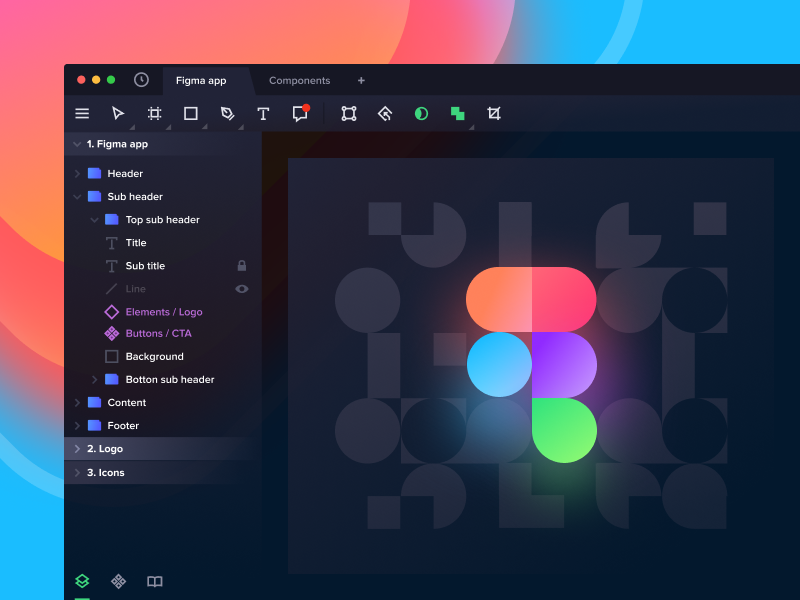
Figma is a practical starting point when designers, product managers, and developers need to work around the same interface files. Its prototyping workflow connects screens with interactions, then lets a team share a browser-based preview for review. That makes it useful for testing a checkout path, onboarding sequence, or navigation model without first building the application.
The main advantage is the joined design-and-review workflow: the same file can contain interface components, variants, and connected prototype screens. Teams that maintain shared libraries can also keep interface patterns consistent while the flow changes. The fit is strongest when reviewers need to comment on visual screens and simple interactions, rather than simulate a large set of data rules.
Figma is less suitable when the prototype must behave like a complex application with many conditions, realistic backend data, or device sensors. Its price also depends on the seat types assigned to collaborators, so compare the cost of editors, developers, and viewers instead of multiplying one seat price across the whole team.
For more on how prototypes fit into discovery and delivery, see these related reads:
- Product Design Process: 6 Steps From Research To Launch
- UI vs UX Design: Definition and Why This Comparison Should Not Exist?
- Top 7 Essential UI Design Principles for Newbies
2. Penpot: Best for Open-Source Design Workflows
Penpot combines interface design, wireframes, interactive prototypes, and developer-facing inspection in an open-source platform. It is worth shortlisting when a team values open standards or wants to compare a hosted workflow with self-hosting. The vendor describes support for CSS Grid, Flex layouts, design tokens, shared libraries, and open file formats such as SVG, HTML, and CSS.
For a product team, that can make Penpot useful when designers and developers need to review layouts and implementation details together. Its free Professional cloud plan lowers the barrier to trying the core workflow; paid Unlimited and Enterprise plans add different usage or governance features. Check the plan page for the current editor cap, storage, and administrative controls.
Self-hosting is a deployment choice, not a zero-effort option. The organization must own installation, upgrades, access, backups, and availability. Teams that need highly specialized simulated interactions should also test whether Penpot’s prototype features cover the behavior they need before committing their design system to it.
3. Sketch: Best for Mac-Based Product Design Teams
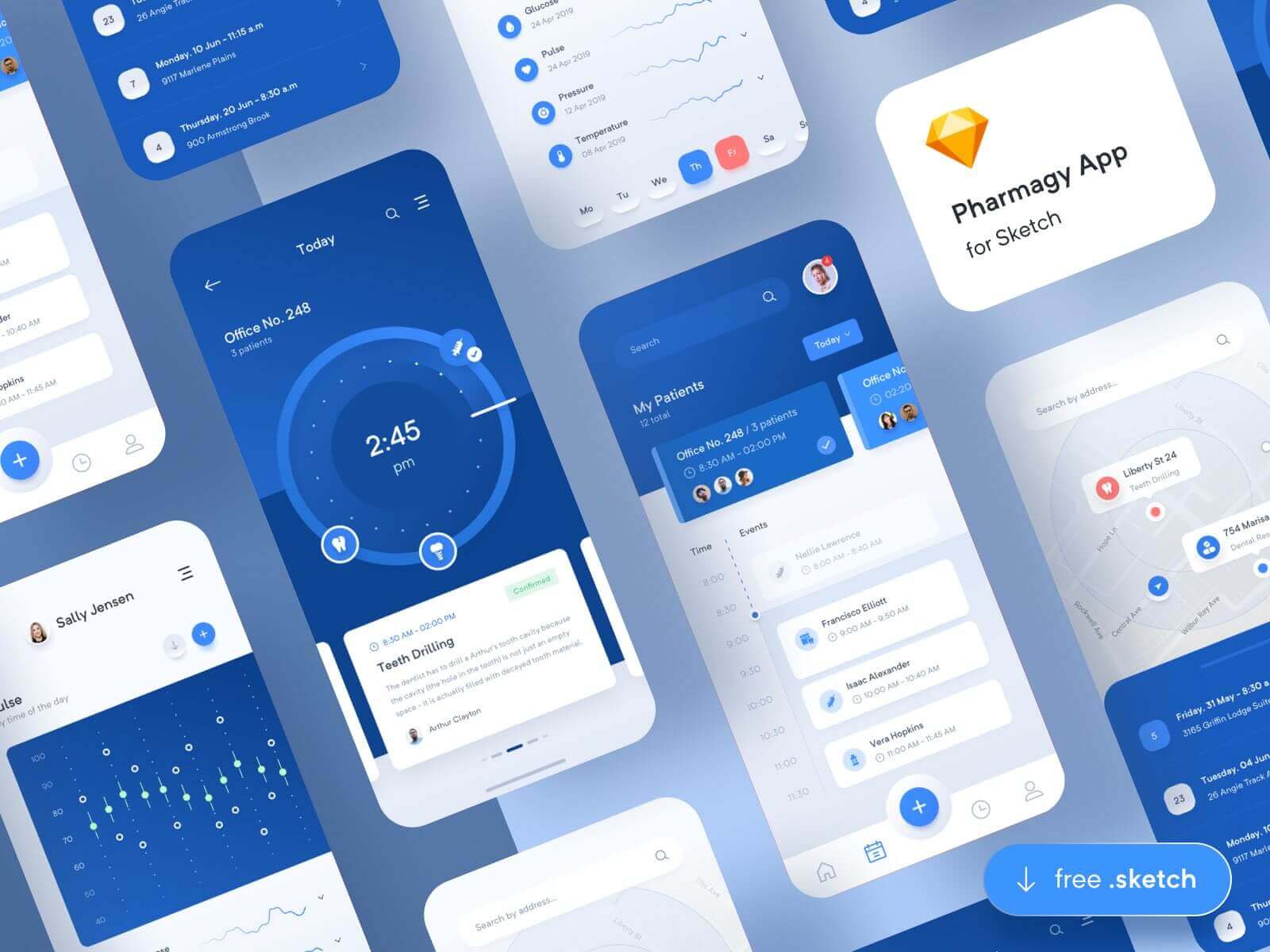
Sketch combines vector interface design, interactive prototyping, collaboration, and developer handoff in a workflow built around its Mac app. A product designer can connect screens, preview a flow, share it for feedback, and prepare implementation details without moving the core design file to another tool.
Sketch fits a team whose authors already use supported Macs and want a native design environment. Its current plans distinguish individual and team needs, and the vendor also lists a one-time Mac license for people who do not need the collaborative subscription workflow. Browser access and the iPhone/iPad app help with viewing and review, but they do not remove the Mac requirement for full authoring.
Choose another option if contributors need to author on Windows or Linux, or if the product requires sophisticated conditional behavior. Before selecting a plan, compare yearly editor costs with the number of people who actually need to change design files; reviewers and developers may not need the same access as design editors.
4. Balsamiq: Best for Fast, Low-Fidelity Wireframes
Balsamiq is designed for teams that need to discuss structure before visual styling becomes the focus. Its deliberately rough wireframe style helps a product owner ask whether a screen has the right fields, actions, and hierarchy without implying that the final interface is already settled. The vendor also supports clickable prototypes, reviewer feedback, and AI-assisted wireframe creation.
Use it for an internal dashboard sketch, a new onboarding form, or a quick alternative layout that stakeholders can review. Reviewers can be invited without paying for each one on the current Starter plan, while the plan charges for editors and sets a project limit. The 14-day trial is not a permanent free plan, so teams with ongoing work should include the annual subscription in their comparison.
The trade-off is fidelity. A sketch-like wireframe cannot tell you whether polished typography, motion, or visual contrast works in context. When a team has agreed on structure and now needs to test the finished interaction, transfer the flow to a higher-fidelity design or simulation tool.
Best Tools for Detailed Interaction Prototypes
These tools are useful when a static screen or simple click path cannot answer the research question. Compare how much logic the prototype needs: conditional states and data-like behavior point toward Axure RP or Justinmind, while device input and cross-device interactions point toward ProtoPie or Origami Studio.
5. Axure RP: Best for Conditional Flows and Data-Like Behavior
Axure RP models events, conditions, variables, dynamic panels, forms, and adaptive views. Use it when a workflow changes in response to a user’s choices. For example, a quote form can reveal follow-up questions, update a summary, and show validation errors before development begins.
Axure also combines prototypes with diagrams and documentation. That control takes more setup than linking screens, so it is excessive for a simple landing-page sketch. Pro is listed at $29/user/month and Team at $49/user/month; the comparison above identifies co-authoring and revision history as Team features. Check billing and paid-seat needs before choosing.
6. Justinmind: Best for Web and Mobile Simulations
Justinmind supports clickable prototypes and simulations with web interactions, mobile gestures, forms, and data behavior. Its Windows and macOS apps suit teams that need to test a registration flow or form validation across web and mobile contexts.
The free plan includes UI design, wireframing, unlimited screens, and one project. Standard is listed at $19/editor/month, but the pricing page also shows a separate annual amount. Check the current plan terms and project limits before budgeting. Choose Justinmind when simulation matters more than a lightweight shared design canvas.
7. ProtoPie: Best for Device and Sensor Interactions
ProtoPie focuses on interaction logic, multi-device behavior, and hardware or system integrations. It suits a connected-device test where a phone control changes an on-screen state or motion input affects the interface. The Free plan lists two cloud prototypes, eight scenes per prototype, and 50 MB of storage.
Basic is listed at $25/month for one seat and Pro at $47/editor/month. Because the plans offer monthly and yearly choices, check the billing toggle and storage limits. For ordinary screen links, a broad UI design tool may be simpler.
8. Origami Studio: Best for Motion and Native Device Capabilities
Origami Studio is a free tool for designing and animating interactive experiences. Its Patch Editor connects behaviors, and its current site documents access to camera roll, audio metering, haptics, GPS, and device motion. Designers can also import editable shapes and text from Figma and record prototype videos.
That makes Origami a specialist option for motion-heavy or device-aware interactions, not the default for routine product screens. The Mac Studio app and Origami Live Viewer have separate device requirements; review the official download and documentation before planning a team review.
Useful Adjacent Tools: Wireframing Suites and Website Prototypes
MockFlow and Framer can help with prototyping tasks, but each serves a broader or different workflow. Keep that distinction visible when comparing them with interface-design and interaction-simulation products.
9. MockFlow: Best for Wireframes and Early Team Alignment
MockFlow is a browser-based visual workspace with wireframing, whiteboards, diagrams, storyboards, and other planning formats. Its WireframePro product is the most relevant part of a prototyping shortlist: it helps a team sketch and iterate on UI concepts before spending time on visual polish.
The Basic plan is free forever and includes one editor, five reviewers, and public sharing. It is a low-risk way to test a small-team review flow. Paid plans are also available; check the current plan and export limits rather than relying on older roundups.
MockFlow is better for early structure and collaboration than for a high-fidelity simulation of a finished app. Pick it when the immediate task is to make ideas visible and align a group; move to a dedicated interaction tool once the team needs detailed states or realistic device behavior.
10. Framer: Best for Responsive Website Prototypes That May Be Published
Framer is most useful when the prototype is a responsive website and the team wants a path from visual design to a published site. It supports page design and interactions in a site-oriented workflow, so a marketing or product website can be reviewed in a form closer to its eventual browser experience.
Framer differs from a general interface prototype: plans cover publishing, bandwidth, and custom domains, not just design-editor seats. The site-plan page in the comparison lists a free plan and Basic from $10/month on yearly billing; compare it separately from per-editor tools.
Choose Framer when the test depends on responsive pages, links, scroll behavior, or a site that may continue toward launch. Do not treat it as the obvious choice for complex mobile-app logic, native device behaviors, or an interaction spec that needs detailed conditional states. A site can look and behave like a product surface without replacing backend or native application work.
Match the Tool to a Real Test
A short, controlled trial reveals more than comparing feature lists. Use the same representative task in two finalists and assess how well each supports the design question, collaboration pattern, and handoff that your team actually needs.
- Write the question first. For example: “Can a new user find and complete account setup?” is more useful than “We need a modern prototype.”
- Build only the necessary path. Include the screens and states needed to test that question. Keep visual detail low unless the test concerns visual hierarchy or brand direction.
- Invite the real reviewers. Ask one designer, one product stakeholder, and a developer or researcher to open the file using the access they would have in a real project. Record setup time, comment clarity, and any access problems.
- Test the handoff. Check whether the next person can inspect the needed measurements, assets, conditions, or interaction notes without asking the designer to recreate them elsewhere.
- Compare the total plan. Count paid editors, external reviewers, projects, storage, publishing, and the billing period. A free trial or a free editor plan does not guarantee that the team workflow is free.
Keep a simple decision record with the task, the two finalists, the time needed to create and share the flow, reviewer access, and the missing capability that would block adoption. The winning tool is the one that lets the team answer the product question with the least avoidable work, not the one with the longest feature list.
Frequently Asked Questions
Can a prototype replace a production application?
No. A prototype demonstrates selected screens and behaviors for discussion or testing. It usually does not include the production data, security controls, reliability, integrations, or backend services needed to serve customers.
Do designers need coding skills to use these tools?
Most tools in this list support visual authoring without code. More advanced prototypes still require logic, conditions, or careful setup, and a no-code prototype does not automatically produce production-ready software.
Should a team use one prototyping tool for every fidelity level?
Not always. One shared tool can reduce file handoffs, but a low-fidelity sketching tool and a sensor-aware simulation tool solve different problems. Keep one default for common flows and add a specialist only when a real test needs its capabilities.
Choose for the Next Decision, Not the Feature Count
Start with a small shortlist: use Figma, Sketch, or Penpot for shared interface work; Balsamiq or MockFlow for early structure; Axure RP or Justinmind for conditional flows; and ProtoPie or Origami Studio when device behavior matters. Consider Framer when the work is a responsive website moving toward publication. Before committing, reproduce one real task, test it with the intended reviewers, and verify current pricing, platform support, and access limits on the vendor’s own pages.
Also published on

Share post on










Related Articles


Helvetica Neue Font: Licensing, Styles, and Mobile UI Decisions
Helvetica Neue Font: Licensing, Styles, and Mobile UI Decisions Published September 30, 2026
10 Best Prototyping Tools for UI, UX, and Product Design Teams
10 Best Prototyping Tools for UI, UX, and Product Design Teams Published September 29, 2026
Product Design Process: 6 Steps From Research To Launch
Product Design Process: 6 Steps From Research To Launch Published September 18, 2026