















Integrating VoIP With CRM Systems: A Practical Integration Guide

Integrating VoIP with CRM systems connects business calls to customer records, so staff can see who is calling, record what happened, and act on the outcome without re-entering every detail. Start by checking that your phone provider and CRM support the same workflows. Then choose a connector, set rules for matching contacts and logging calls, and test the full call journey before rollout.
The right VoIP CRM integration is not necessarily the one with the most features. It is the one that links each call to the correct record, respects access and recording rules, and keeps working when an event or connection fails.
What Is VoIP CRM Integration?
VoIP CRM integration links a Voice over Internet Protocol phone system with customer relationship management software. VoIP carries calls over IP networks. The CRM holds contact details and the history of sales or support work. Connecting them lets staff use customer context during a call and save relevant call activity afterward. Our guide to how VoIP works explains the phone technology behind this connection.
The link may use a provider’s app, a computer-telephony integration (CTI), or custom software. CTI lets a phone system interact with a computer application, such as opening a contact record when a call arrives. Some connectors only offer click-to-call or basic activity logging. Others can show incoming calls, record outcomes, and create follow-up tasks. Support also varies by user license, CRM edition, and calling provider.
Do not assume the integration copies every update in both directions. The CRM might send a phone number to the dialer while the phone system sends only a completed call event back. Before choosing an app, identify which system owns each field and which events the connection can actually transfer.
VoIP CRM Integration Features Across The Call Lifecycle
A useful integration supports the agent before, during, and after the conversation. The exact feature set depends on the provider, so assess the whole workflow rather than counting features on a sales page.
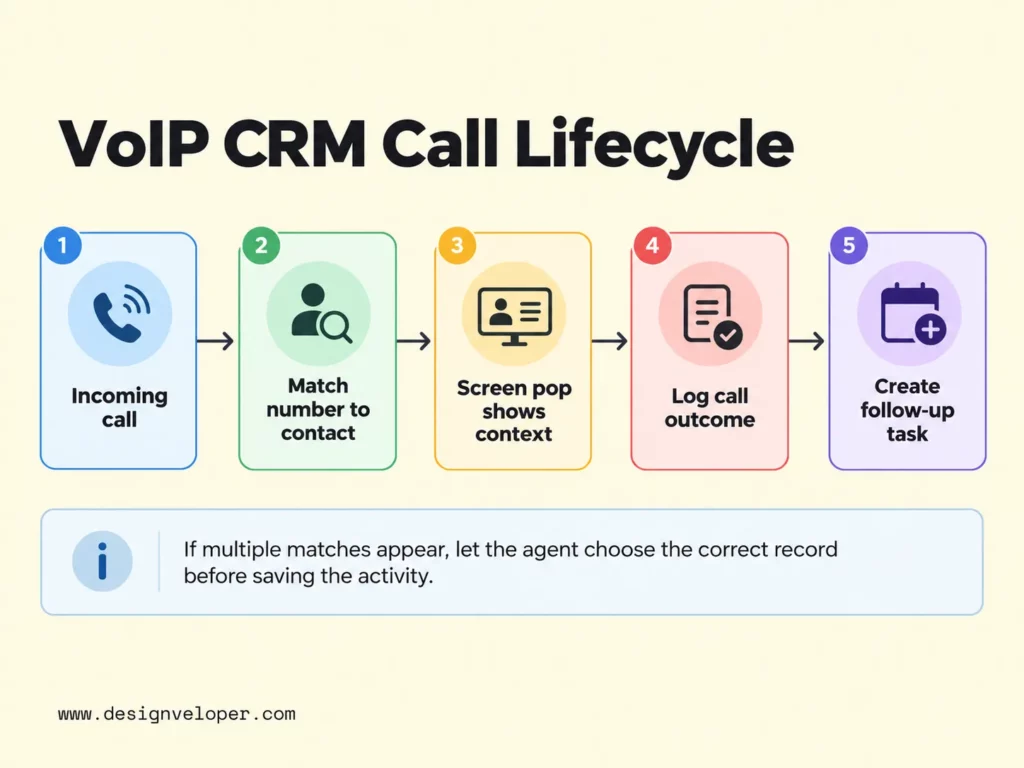
Before a call, click-to-call lets a user dial from a contact record. For an inbound call, caller matching can look up the phone number and display a matching record. This screen pop helps the agent review an open ticket or recent conversation. It should not silently select a customer when several records share a number.
During a call, an embedded softphone may provide answer, hold, or transfer controls inside the CRM. Some apps need a separate calling window to keep the audio connection active when the user navigates. HubSpot’s calling-app instructions describe several interface modes and note that available functions differ by provider.
After a call, the connection can create an activity with its time, direction, duration, agent, and result. Notes, recordings, and transcripts require separate checks: the provider must support them, the CRM must accept them, and company policy must permit their storage. A call marked as unresolved can then trigger a task for the person responsible, instead of being left as a passive entry in the history.
Consider an illustrative support call. A customer phones about an order, and the system matches their number to one contact. The agent opens the active ticket, checks the delivery status, and ends the call with a promised update. The integration records the call against that ticket and schedules a task for the next day. If the number matches two customers, the safer outcome is to ask the agent to choose the record before saving the activity.
This workflow also defines what to measure. Count calls that reach the right record and follow-ups that reach the right owner. Total call volume alone cannot show whether the CRM history is dependable.
Ways To Connect VoIP With A CRM
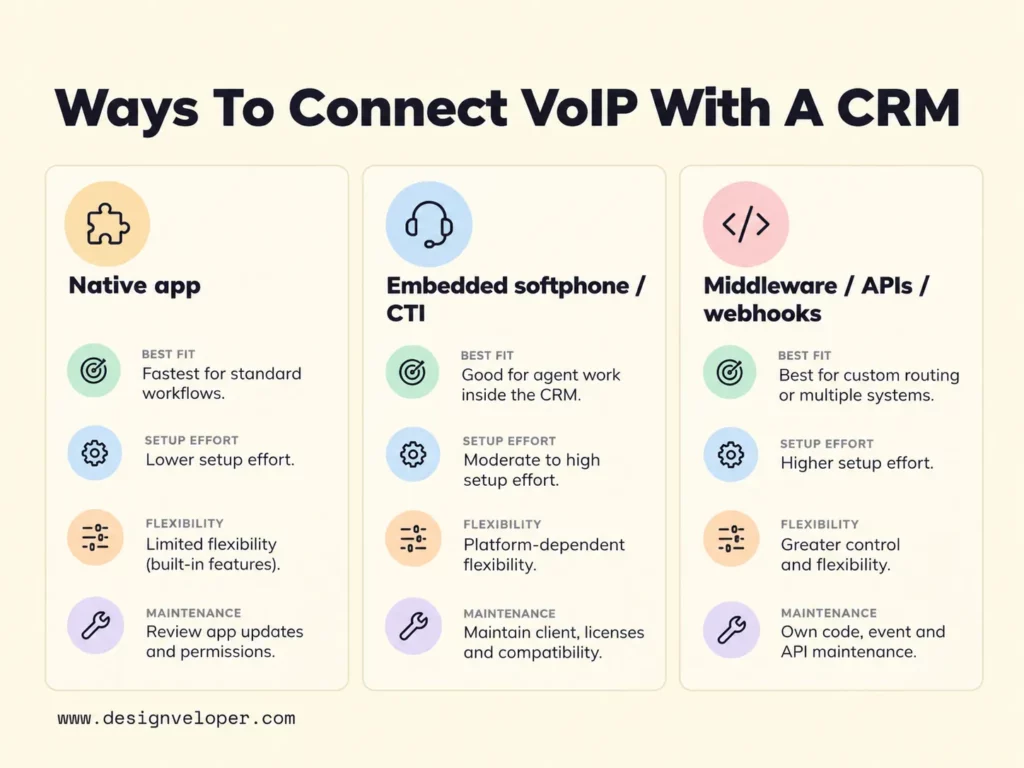
There are three common connection paths. Choose based on the call experience you need, the systems already in use, and who will maintain the connection after launch.
Use A Native Connector Or Marketplace App
A native connector or marketplace app is usually the fastest starting point when it already handles your essential calls. An administrator installs the supported app, grants access, and sets its available logging options. Vendor documentation should state which CRM records it supports and whether users must authorize their own accounts.
The trade-off is control. A prebuilt app may log calls against contacts but not support your custom ticket relationships or approval rules. Test those limits before buying a plan or connecting all users. In HubSpot, for example, the calling experience and the notes or recordings shown after a call depend on the chosen app’s configuration.
Embed Calling With A CRM Softphone Or CTI Integration
An embedded softphone keeps calling controls close to the work screen. CTI can also search contacts and open records when calls arrive. This path fits teams that handle many calls and lose time switching between a dialer and the CRM. Our overview of SIP softphones helps explain the calling client, which is separate from the CRM data connection.
Salesforce’s Open CTI developer guide documents browser-based softphone integration and screen pops. Yet Open CTI is now in maintenance mode, with retirement scheduled for February 2028. It is also unavailable for newly created Agentforce Service organizations. Teams planning new Salesforce work should evaluate Salesforce Voice with Partner Telephony and its licensing and partner requirements instead of treating Open CTI as a future-proof default. HubSpot’s Calling Extensions SDK guidance offers another platform example, covering inbound-call events and contact matches.
Connect Through Middleware, APIs, Or Webhooks
Custom integration is useful when call events must update several systems or follow rules a connector cannot express. An API lets software request an operation or data. A webhook notifies another system when an event occurs. Middleware receives those events, checks them, and applies the right changes to the CRM. Our API integration guide explains why authentication, field mapping, retries, and monitoring belong in that design.
For example, a phone provider might send a completed-call event to middleware. The integration checks the event ID, finds the linked ticket, and writes a call activity. If the CRM is temporarily unavailable, the event can wait for a controlled retry. This adds flexibility but also creates software that someone must secure, monitor, and update.
The comparison below describes typical implementation trade-offs, not guaranteed features or fixed project costs.
| Connection path | Best fit | Setup effort | Flexibility | Ongoing maintenance |
|---|---|---|---|---|
| Native app | Supported, standard call workflow | Usually lower | Limited by provider options | Review app updates and permissions |
| Embedded softphone or CTI | Agent work inside the CRM | Moderate to high | Depends on platform and vendor | Maintain client, licenses, and platform compatibility |
| Middleware, APIs, or webhooks | Custom routing or multiple systems | Usually higher | Greater control over business rules | Own code, event failures, and API changes |
Use the simplest path that can pass your required call scenarios. Building a custom integration to reproduce features already supported by a stable app adds maintenance without improving the customer’s experience.
How To Integrate VoIP With CRM Systems
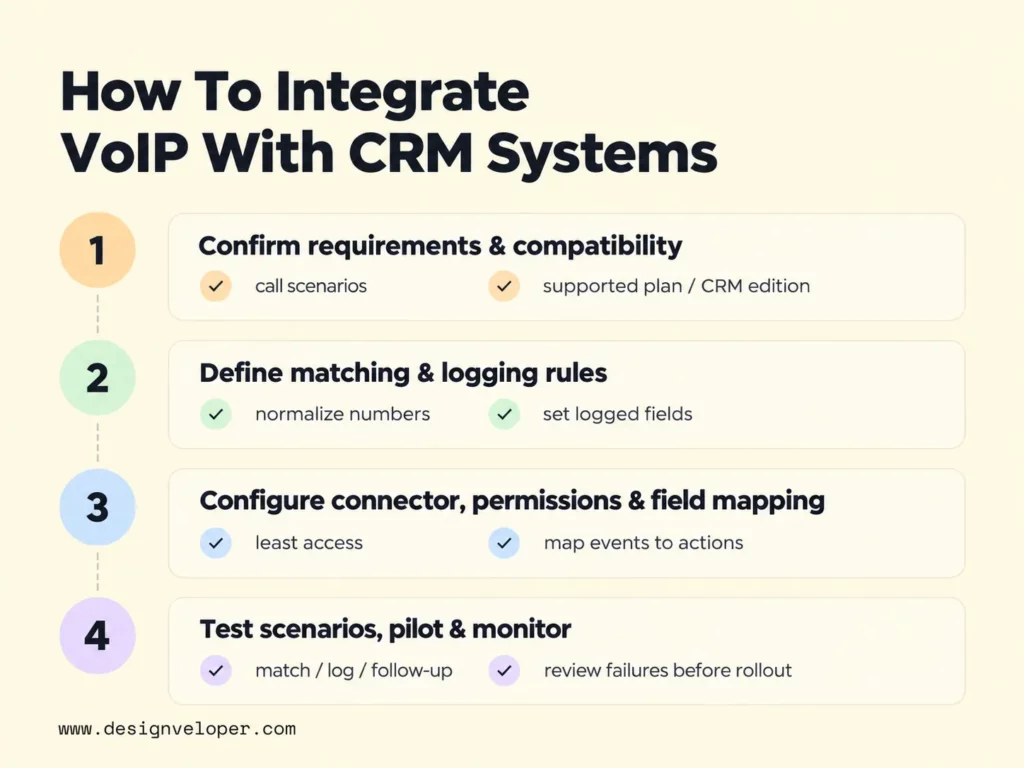
Implement one complete call workflow first, then expand. A successful pilot must show accurate record matching, reliable logging, and delivery of the promised follow-up. The four steps below form an implementation checklist for either a marketplace connector or custom integration. For teams integrating VoIP with CRM systems, the final check is whether the saved call leads to the right next action.
1. Confirm Workflow Requirements And Compatibility
Write down the calls staff actually handle. Identify inbound and outbound scenarios, agent roles, shared lines, and the CRM objects that should hold each activity. Choose one representative scenario to test from ringing to follow-up. Decide which features are mandatory rather than assuming all providers support them.
Check the specific provider plan, CRM edition, supported app version, region, and user permissions. Ask whether incoming calls work in the browser and whether a separate calling window must stay open. For mobile users, confirm whether calls made outside the desktop application can be logged. Also check any limits on API calls or stored recordings that affect your intended volume.
2. Define Contact Matching And Call-Logging Rules
Decide how the system identifies a contact before changing data. Normalize telephone numbers to a consistent international format where possible. Define what happens when the number is missing, hidden, shared, or linked to several contacts. Ambiguous matches should go to an agent or a review queue, not to the first record returned by a search.
Next, specify exactly what the integration logs. Most teams need a unique call ID, direction, timing, agent, outcome, and a link to the selected contact or ticket. Decide whether to include missed calls and internal calls. Keep call notes separate from private recording files, since they may have different access and retention rules.
Choose a system of record for each value. A CRM user might edit the call outcome while the phone platform remains authoritative for call duration. If the same event arrives twice, the integration should update or ignore the existing activity rather than create a second call. Record these decisions before field mapping starts.
3. Configure The Connector, Permissions, And Field Mapping
Install or register the integration in a test environment first. Connect the accounts using the provider’s supported authorization method. Give the integration only the permissions needed to read matching records, create call activities, and complete approved follow-ups. Store credentials securely and assign an owner who can renew or revoke access.
Map every phone event to a defined CRM action. For example, an answered inbound call can create an activity linked to a selected ticket. A missed call might create a callback task, but only if a team has agreed to own that task. Verify the time zone, agent identity, outcome labels, and custom fields. Do not turn on every available automation at once.
4. Test Call Scenarios, Pilot, And Monitor
Test with real user roles and safe sample records before enabling the integration for everyone. The goal is to observe both the successful path and the points where a customer record could become misleading. For each scenario, compare what the caller and agent experienced with what appeared in the CRM.
- Contact matching: Test one match, multiple matches, no match, and a withheld number. Check that no unrelated contact is changed.
- Call logging: Test answered, missed, transferred, and outbound calls. Check the record link, timestamp, owner, outcome, and duplicate handling.
- Follow-up delivery: Trigger an agreed callback or ticket update. Confirm the correct owner receives it only once.
- Recovery: Temporarily interrupt CRM access in a controlled test. Confirm that failed events are visible and can be retried or reconciled.
Run a pilot with a small group, then review incorrect matches, missing events, failed tasks, and agent feedback. Expand only after the team can explain who fixes each failure. Track these outcomes over time, especially when a provider updates its app or changes an API.
If the workflow needs a custom softphone or call-center connection, define the contact, event, and recovery rules before requesting development estimates. In our VoIP application development services, we describe support for custom calling applications and integrations. The practical scope to agree first is a testable call journey, not simply a list of calling features.
Protect Data Quality, Privacy, And Reliability
Reliable CRM telephony integration needs safeguards after launch, not just a successful setup. Contact data changes, phone events can arrive late, and external services sometimes fail. Design the connection so these problems are visible and recoverable.
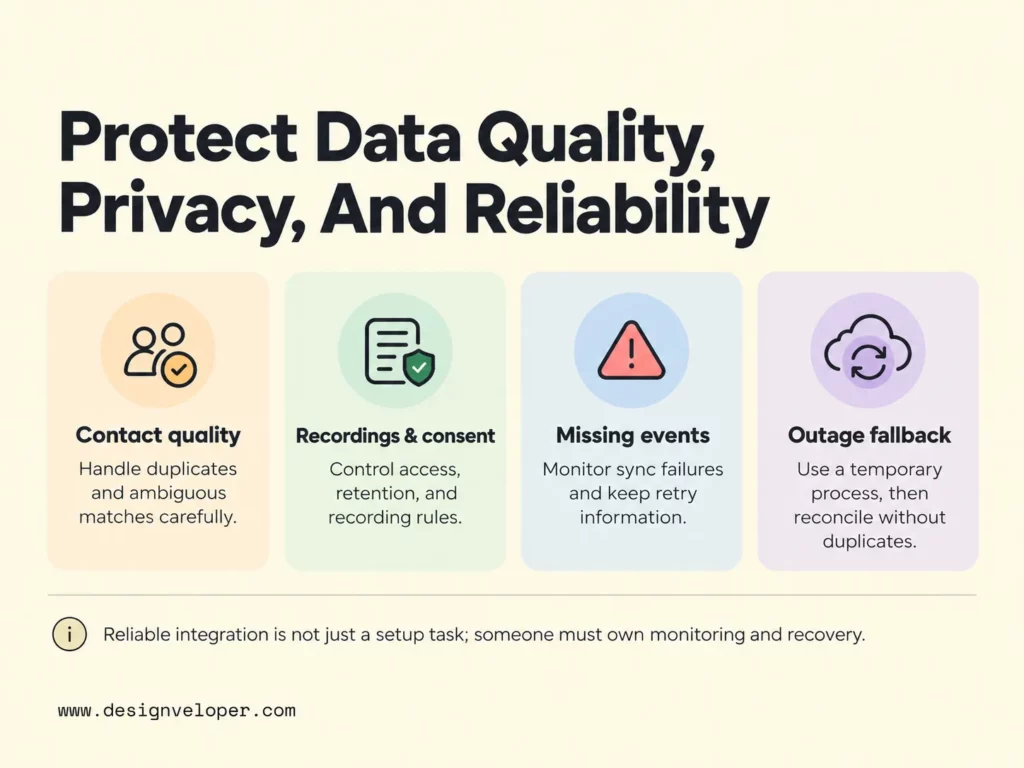
Protect record quality by using stable call IDs and explicit matching rules. Review duplicate contacts instead of merging them automatically during a live call. Monitor missing or delayed call logs against the phone provider’s activity history. When an event cannot be applied, keep a clear failure record with enough information for a permitted retry.
Apply access controls to both the CRM record and any linked recording or transcript. Limit who can play, export, or delete recordings. Set retention periods based on business purpose and applicable law, and check recording notice or consent rules in every relevant jurisdiction. A call summary may be enough for a follow-up; storing the full conversation should not be the default without a clear need. Our VoIP security practices guide covers related steps for protecting phone accounts and communications.
Plan a fallback for downtime. Agents should still be able to answer or place calls through the phone platform when the CRM connector is unavailable, if the calling service itself remains operational. Keep temporary notes through an approved process, then reconcile them when the connection returns. Prevent the recovery job from creating duplicate activities or sending stale reminders.
Ownership matters as much as monitoring. Assign someone to review event errors and provider changes, while a business owner reviews whether the logged outcomes support actual follow-ups. Together, those checks show whether the integration remains useful rather than merely connected.
FAQs About VoIP CRM Integration
Can You Choose Which Calls The CRM Logs?
Often, but the available controls depend on the phone provider and integration. Some apps expose settings for inbound, outbound, or missed calls. Custom connections can apply approved rules before writing an activity. Verify the settings with test calls, especially when personal, internal, or sensitive conversations should not enter customer records.
Do Users Need To Connect Their CRM Accounts Individually?
It depends on how the integration is authorized. Some apps require every user to sign in and connect an account. Others use an administrator-managed connection alongside individual agent mapping. Check the provider’s instructions and test a new user’s access before rollout. A central setup does not automatically grant every agent permission to view customer data.
What Happens To Call Data If The Integration Goes Offline?
Calls may continue through the phone platform while CRM updates stop, but the result depends on which component failed. Some connectors queue missed events; others require a later import or manual recovery. Ask the provider about event retention and retries, then test an outage. Until records are reconciled, staff should treat the CRM call history as incomplete.
Also published on

Share post on










Related Articles


CRM Integration: Types, Use Cases, And How To Connect Systems
CRM Integration: Types, Use Cases, And How To Connect Systems Published October 20, 2026
Integrating VoIP With CRM Systems: A Practical Integration Guide
Integrating VoIP With CRM Systems: A Practical Integration Guide Published October 16, 2026
Low Code Vs Pro Code: Choosing The Right Fit For Your Product
Low Code Vs Pro Code: Choosing The Right Fit For Your Product Published October 15, 2026