

















When you start any project, what matters is how to organize tasks and keep track of work progress effectively. This is a common problem among Agile teams, especially when they work in distributed environments. In this case, many lean towards Agile project management tools, and Jira is the name you hear often. So, how is Jira used for Agile project management?
If you’re looking for an answer to the question, you’ve come to the right place. Here, we’ll guide you through how Jira actually supports Agile workflows through its core features. You’ll also learn how to set up Jira for Agile teams, the tool’s pros and cons in Agile PM, and best practices to use it effectively.
But first, let’s take a quick look at what Jira and Agile project management mean.
What Is Jira And Agile Project Management?
Before we get into how to use Jira for Agile teams, it’s better to learn about what Agile project management means and how Jira supports it.
What Agile Project Management Means
Agile project management is a method of managing projects based on the Agile philosophy.
Instead of rigidly planning everything from day one and focusing on a full release, Agile teams work in small, iterative cycles (often called iterations or sprints). Accordingly, they break down a large work into smaller, more manageable tasks that they can implement within a single sprint. This way, they can quickly release product increments, gather real feedback, and adjust (both products and workflows) to adapt to changes.
Agile project management inherently values flexibility over rigid planning. It helps teams handle changing requirements, evolving customer needs, and unexpected blockers. As a result, teams can deliver something valuable that always meets customer expectations.
Adopting Agile in project management is becoming increasingly popular. That leads to an increase in software and tools supporting it. According to Research Nester, the global market of such software is expected to reach $6.08 billion by 2026, growing at an annual rate of 13.5% through 2035.
How Jira Supports Agile Teams
Developed by Atlassian, Jira is a project management tool designed mainly for software teams. Over time, it’s grown into something much bigger, now used by more than 300,000 companies across different industries.
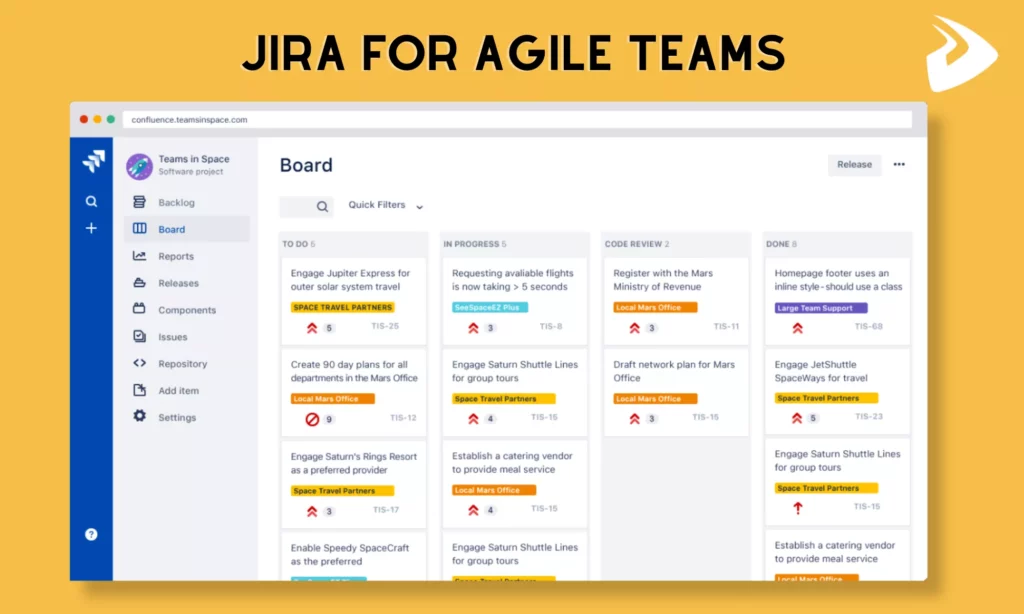
Jira supports the two most widely used Agile frameworks: Scrum and Kanban. But what makes it stand out isn’t just framework support, but the level of control teams get over their workflows. You can define exactly how tasks move from one stage to another. This helps teams stay consistent and avoid confusion in practice.
Its reporting features are another plus. Teams can track progress using burndown charts, burnup charts, velocity charts, and cumulative flow diagrams. There are also deployment-related reports, like cycle time and deployment frequency, that give insight into how quickly teams actually deliver value. Add to that roadmap features for long-term planning, and you get a tool for not only tracking tasks but also understanding performance.
At companies like Designveloper, Jira is often used to manage sprint backlogs, monitor team velocity, and keep stakeholders aligned through visual reports. With Jira, our project managers can quickly spot bottlenecks or resource gaps and adjust even during mid-sprint, if needed.
FURTHER READING: |
1. How to Build an Application Like ChatGPT: A Full Guide |
2. Can ChatGPT Really Build an App? What ChatGPT Can & Cannot Do |
3. What Is Mocha in Javascript? A Complete Beginner’s Guide |
Key Aspects Of Agile With Jira
Now that we’ve covered the basics, it’s time to look at how Agile actually comes to life inside Jira.
Jira Support For Scrum And Kanban
The software supports both Scrum and Kanban, which are the two common Agile frameworks many teams often choose.
- For Scrum
Jira provides dedicated Scrum boards where teams can plan sprints, estimate tasks, and track progress in short iterations. You get backlog grooming, sprint planning tools, story points, and those familiar burndown charts that show whether you’re on track or falling behind.
- For Kanban
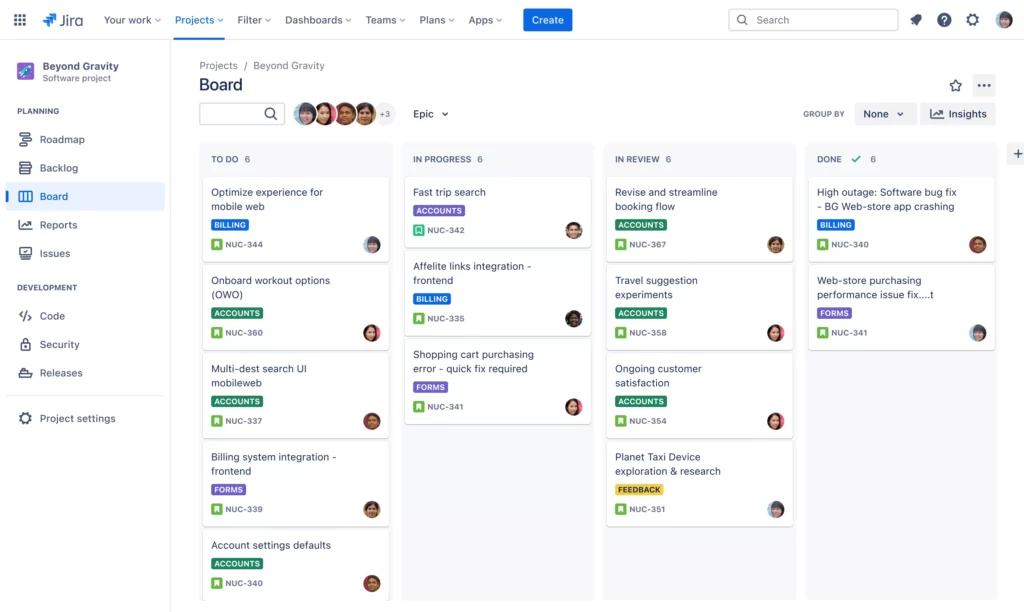
Kanban focuses on flow more than fixed timelines. So, Jira comes with Kanban boards to let teams visualize work as it moves through different stages, usually from “To Do” to “In Progress” to “Done.”
Teams can build their own Kanban board or use Kanban board templates and customize them to fit their specific needs. Through Jira Kanban boards, teams can easily identify bottlenecks, visualize work progress, and manage tasks more efficiently.
Jira doesn’t force teams to choose either approach. They can switch between Scrum and Kanban or even blend them, because all those features are well-integrated within a unified platform.
Work Hierarchy In Jira: Epics, Stories, Tasks, And Sub-Tasks
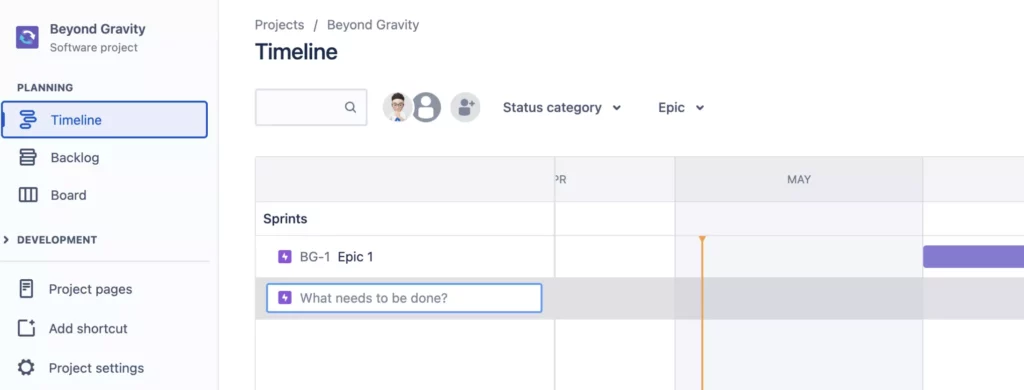
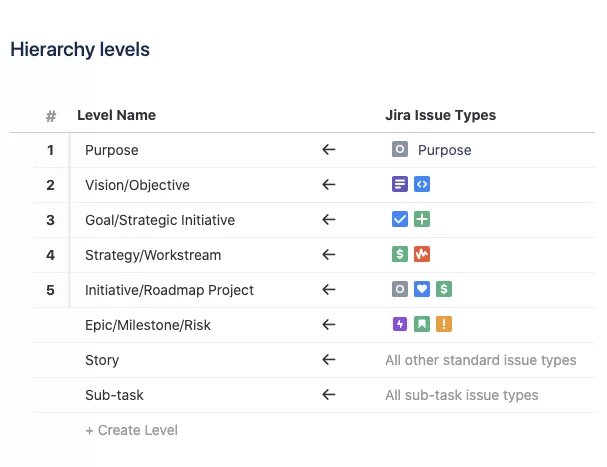
Agile work isn’t just a flat list of tasks, but it’s layered by a work hierarchy. Accordingly, you can start with big ideas (Epics), break them into smaller pieces (User Stories), and then go even deeper into Tasks and Sub-tasks. This hierarchy helps teams manage complexity without losing sight of the bigger picture.
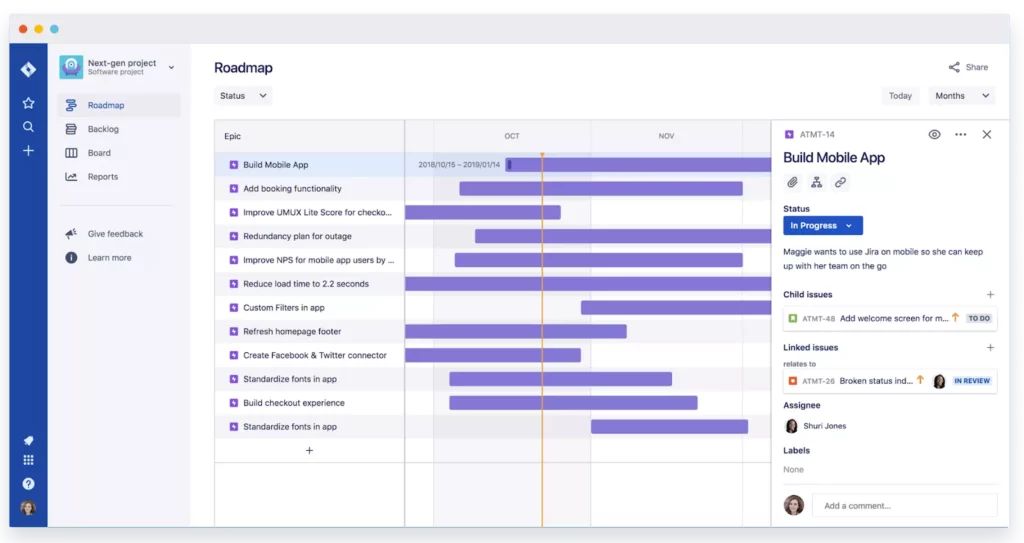
Jira supports this structure. It allows teams to create new epics from a Timeline View, an Epic Panel (in the backlog), or a new work item (in the navigation menu).
What Jira does well here is linking everything together. You can trace a small Sub-task all the way back to its Epic, hence managing the backlog more easily. Besides, it allows teams to visualize progress on boards and use the Epic Report to see how many incomplete work items an epic has and estimate when the epic will be completed. For this reason, even when an epic spans various sprints, teams can easily track work.
Beyond these Agile epics, Jira offers advanced features to guide projects and get better visibility of work across distributed teams. For example, Jira Plans helps teams understand the purpose, vision, goal, strategy, and initiative of a project, while the Cloud Foundations helps connect and visualize projects within a shared delivery plan.
Agile Boards For Visibility And Workflow Transparency
Jira supports efficient Agile project management mainly thanks to visualization tools, and one of its special features is boards. Agile boards – whether Scrum or Kanban we mentioned above – create a shared workspace where everyone can see what’s happening in real time.
On a Jira board, tasks move across columns that represent different stages of work. You can instantly see what’s in progress, what’s blocked, and what’s done. This removes the need for chasing updates in meetings or messages.
These boards also support workflow customization. Agile teams can define their own stages, add rules, and adjust processes as they evolve. This reduces miscommunication and keeps everyone aligned. More particularly, project managers can spot bottlenecks early, developers know what to pick up next, and stakeholders get a clearer picture of progress without constant check-ins.
Core Jira Features For Agile Project Management
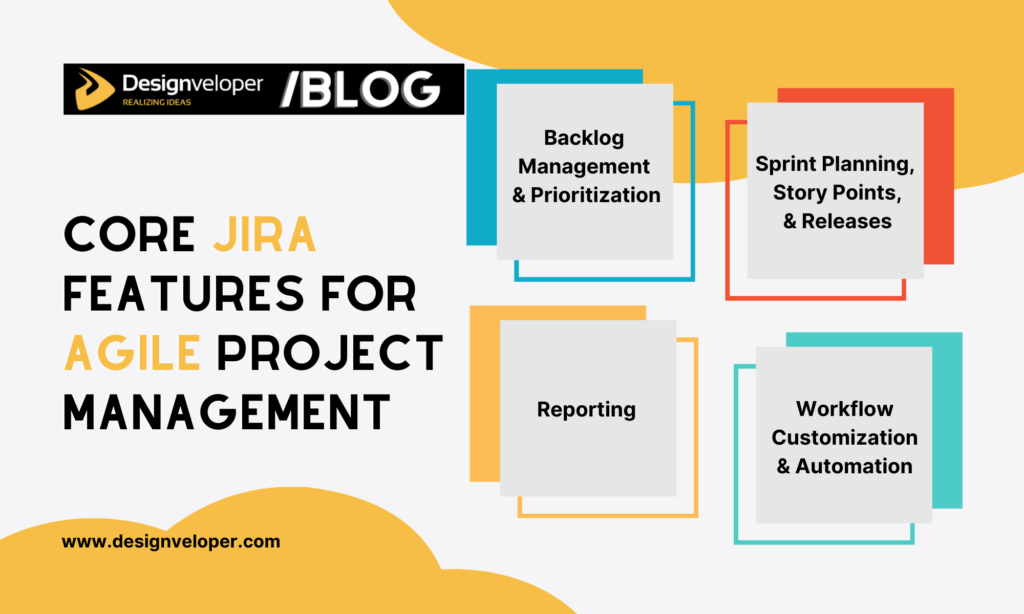
We’ve looked at how Jira aligns with Agile workflows. And now, let’s dive deep into several core features of Jira that support Agile project management:
Backlog Management And Prioritization
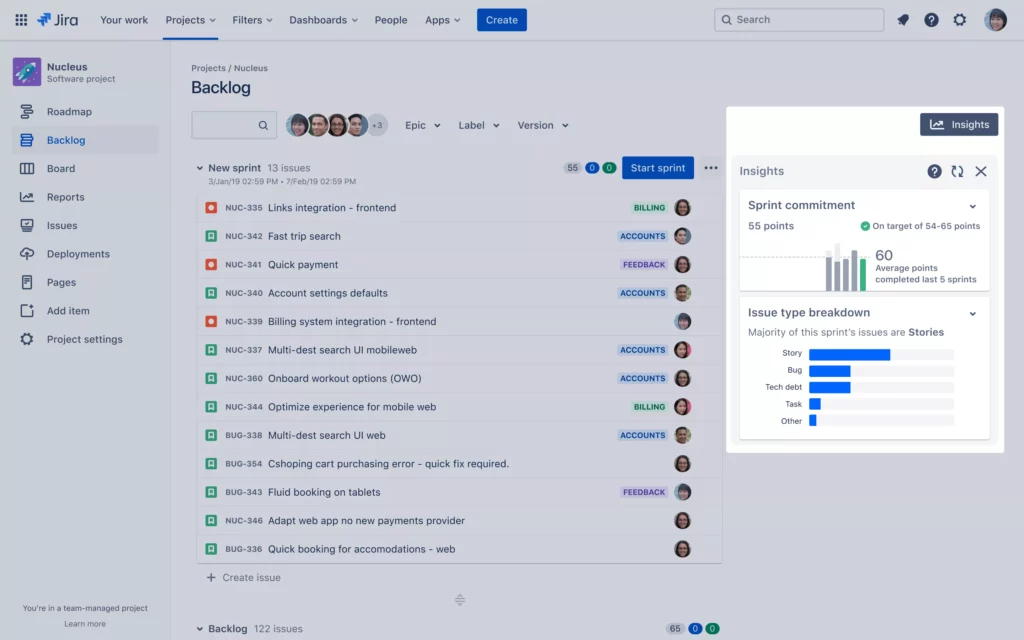
First, Jira supports backlog management and task prioritization. When accessing the Jira software, you’ve probably noticed the Backlog sitting there in the left-hand navigation.
This feature helps Agile teams stay organized and forward-looking by allowing them to:
- Track ongoing work while also seeing what’s coming next in the pipeline
- Create, organize, and prioritize user stories directly in the backlog
- Monitor project progress without jumping between multiple views
- Improve collaboration by giving everyone shared visibility into tasks and priorities
- Visualize workloads and priorities to assess whether the team has enough capacity to hit goals
Jira also gives teams several ways to prioritize their tasks based on different factors like epics, specific teams/sprints, portfolios, or programs:
- Manually reorder tasks using simple drag-and-drop
- Automatically organize tasks by inheriting ranking from parent items in the backlog hierarchy
- Synchronize rankings when integrating with tools like Jira Align, especially for larger-scale planning across teams
Sprint Planning, Story Points, And Releases
Jira provides those features to help teams plan, execute, and deliver work effectively. Here’s how it typically plays out:
- For Sprint Planning
From the Backlog located in the left-hand menu, teams can create sprints and drag issues directly into a sprint based on priority or readiness. Furthermore, they can assign story points to estimate effort and set realistic sprint goals. Jira also allows teams to identify sprint objectives to have a clearer focus on their work.
- For Story Points & User Stories
In Jira, user stories are managed as issues, which teams can create from the top navigation bar, their backlog, or their board. They can even break issues further into sub-tasks for more granular execution and estimate effort directly in the backlog to forecast delivery timelines.
What’s more, Jira helps teams rank issues and flag them (i.e., when members don’t have enough capacity to complete them). Teams can also transition across workflow stages and apply filters to focus on what matters.
- For Releases (“Versions” in Jira)
In Jira, versions act as milestones, helping teams group work toward a specific delivery goal. Accordingly, teams can create versions directly from the project (space) menu, then assign issues to versions and align sprints around completing them.
Through timeline views, teams can track progress for better planning visibility. Additionally, they can use the Release Hub to monitor release status and see how many work items are completed or still pending.
Reporting With Burndown Charts, Velocity Charts, And Epic Reports
Jira helps teams manage and track how their projects progress, not only through Boards and Timeline but also with reporting and analytics tools. Typically:
- Burndown Charts
These charts show how much work remains versus an “ideal” progress line, which is usually a straight downward slope. More particularly, the Sprint Burndown tracks day-to-day progress within a sprint, helping teams see if they’re likely to hit the sprint goal. Meanwhile, the Epic or Release Burndown offers a longer-term view for bigger chunks of work.
Thanks to those charts, teams can easily detect scope creep. If the line suddenly goes up instead of down, something’s going wrong, for example, maybe new work is being added, or estimates weren’t quite right.
- Velocity Chart
This chart measures how much work a team completes across multiple sprints. Accordingly, it uses historical data (often the last 3-7 sprints) to forecast how much work the team can realistically handle next. Jira can show teams up to 120 completed sprints and roughly 25K issues in the velocity chart.
- Epic Report
This report focuses on a single Epic and tracks progress across all its associated issues.
Particularly, it shows how work is progressing over time, based on estimates and completion rates. It also highlights scope changes (e.g., when new stories are added mid-way) that directly affect delivery timelines. Further, through this report, teams can predict how many more sprints teams might go through to finish the Epic, based on current trends.
Workflow Customization And Automation
One of Jira’s biggest strengths is that it allows teams to customize and automate workflows.
- Workflow customization
Jira provides available workflow templates that teams can visually customize in the Workflow Editor without touching code. Besides, they can define statuses and transitions to map out the lifecycle of a task, like from “To Do” to “In Progress,” “Code Review,” and “Done.”
Jira also comes with conditions, validators, and post-functions to give teams advanced control over their projects. Accordingly, conditions can restrict who can move a task forward, and validators ensure certain requirements are met (like completing all sub-tasks). Meanwhile, Jira’s post-functions can automate updates, like sending notifications or changing fields.
- Workflow automation
Jira offers automation capabilities that follow a simple “if-this-then-that” logic to reduce repetitive work. These automation rules work based on: triggers (that activate the rules), conditions (that define how the rules work), and actions (that perform tasks).
You can customize premade automation templates from Jira’s library or build ones yourself to auto-assign issues, create sub-tasks, close parent tasks, sync statuses across related issues, and more. Besides, you can configure Jira to automatically move unfinished tasks at the end of a sprint either back to the backlog or into the next sprint.
Jira also offers Rovo AI, an agentic AI tool, to take automation further by planning, breaking down, prioritizing, and enriching work items. It can help team members find information within work items through conversational chats to speed up onboarding and stay more productive.
How To Set Up Jira For Agile Teams
So, how can your Agile team set Jira up for project management? This section supports you in preparing an effective environment, with customized workflows, issues, and backlogs, in Jira.
Create A Scrum Or Kanban Project
First, you need to create a Scrum or Kanban project following these steps:
- From the top navigation, click Projects → Create project
- Choose between Scrum or Kanban templates under the “Software development” category. Scrum projects often come with a backlog, sprint planning features, and time-boxed iterations, while Kanban projects focus on continuous flow, with no sprint structure by default.
After selecting a template, you’ll:
- Choose between a team-managed project (simpler, more autonomy) or a company-managed project (more control, but also more setup)
- Enter a project name and key (Jira usually auto-generates this, but you can change it)
- Click Create, and Jira will spin up a pre-configured board with default workflows
After creating a Scrum or Kanban project, you’ll land on your board where you can start customizing workflows and issue types.
Configure Workflows And Issue Types
Once the project is created, the next step is shaping how work actually flows through it by creating workflows and issue types that fit your specific needs.
- Go to Project settings → Workflows
- Open the workflow editor to view or modify existing statuses and transitions. Here, you can add or rename statuses (e.g., “To Do,” “In Progress,” “Code Review,” “Done”) and define transitions to guide how issues move between these states. Further, you can apply rules using conditions or validators if needed.
To configure issue types, you’ll navigate to Project settings → Issue types. Then, choose defaults, like Epic, Story, Task, and Bug, or create custom types if your team needs something more specific. Each issue type can also have its own fields, screens, and workflows, depending on how detailed you want to get.
Build, Refine, And Prioritize The Backlog
With the structure in place, the backlog becomes your main workspace. This is where you turn ideas into actual, trackable work.
- Go to the Backlog view from the left sidebar (available in Scrum projects by default)
- Click Create to add new issues, which can be stories, tasks, or bugs
- Group related work under Epics for better organization
When your backlog grows, you can refine it for more effective management by:
- Breaking large items into smaller, actionable tasks
- Adding descriptions, acceptance criteria, and attachments where needed
- Estimating effort using story points (if your team uses them)
Additionally, your team can prioritize work items by dragging and dropping them to the top positions in the backlog or assigning them to specific epics, sprints, or versions. You can also use filters or quick views to focus on specific work.
How To Use Jira In Scrum And Kanban Teams
As mentioned earlier, Jira supports Scrum, Kanban, and hybrid approaches to manage projects effectively. So after you’ve understood how to set this software up, one question may arise: How do you actually use Jira for either Scrum or Kanban projects? Keep reading, and you’ll learn about how and when to use which.
Using Jira For Scrum Planning And Sprint Execution
Scrum works best when your team delivers work in structured, time-boxed iterations (usually 1-4 weeks). If your team values predictable delivery cycles, regular planning, and clear sprint goals, Scrum in Jira is probably the right fit.
In Jira, Scrum revolves around the backlog and sprint cycle. Accordingly, teams start in the Backlog view to organize and prioritize upcoming work. During sprint planning, they create a sprint and drag selected issues into it. Each issue can be estimated using story points, helping teams estimate how much work they can actually commit to.
Once the sprint begins, teams can:
- Track work on the Scrum board, with issues moving across columns like “To Do,” “In Progress,” and “Done”.
- Flag issues that are important or blocked
- Automatically updates burndown charts, giving a real-time sense of whether the sprint is on track
At the end of the sprint, teams will review completed work and (automatically) move incomplete tasks back to the backlog or into the next sprint. Through velocity charts, teams get actionable insights to adjust future planning.
Using Jira For Kanban Flow Management
Kanban focuses more on continuous workflows than fixed sprints. So when you set up Jira for Kanban projects, there are mainly boards and workflow visualization supporting your team to handle ongoing requests, support tickets, or unpredictable workloads.
In Jira, teams can:
- Customize board columns to match their workflow
- Add tasks (issues) to the board and move them across columns (workflow stages)
- Quickly filter and prioritize work items
- Monitor blocked items and resolve them quickly
- Get insights into how work moves over time and identify bottlenecks through cumulative flow diagrams
Choosing The Right Jira Setup For Your Team
Choosing the right setup helps your team work effectively towards the shared goal. If your team clearly identifies the right project management method for specific projects, then pick the right Jira setup corresponding to that approach. But if you haven’t, consider when to set which in Jira as follows:
- Choose Scrum if:
- Your team works toward defined deliverables or releases
- You benefit from structured planning and regular retrospectives
- Work can be broken into predictable chunks
- Choose Kanban if:
- Work arrives unpredictably (e.g., support, maintenance)
- You need flexibility over strict timelines
- Continuous delivery matters more than sprint goals
Besides, you can consider a hybrid approach if:
- You want a sprint structure, but also need flexibility for urgent tasks
- Your team is transitioning between methodologies
Jira actually supports the flexibility of combining these two approaches. Teams can run Scrum boards but manage smaller tasks in a Kanban-style flow within the sprint. Or they can start with Kanban, then introduce sprints later as processes mature.
Pros And Cons Of Using Jira For Agile

Now, you’ve seen what Jira can do across Scrum and Kanban workflows. But before fully committing to it (or doubling down on your current setup), it’s worth stepping back a bit. Because Jira is powerful, but it’s not without limitations.
Benefits Of Jira For Agile Project Management
Jira has become a go-to tool for Agile teams for a reason. When used well, it brings the following benefits:
- Strong support for Scrum and Kanban: Jira natively supports both frameworks, so teams don’t need external tools to manage sprints or continuous workflows.
- Flexible workflow customization and automation: Teams can define their own statuses, transitions, and rules to match how work actually flows instead of following a rigid framework. Besides, with AI and automation capabilities, Jira helps Agile teams reduce repetitive tasks while ensuring quality.
- Powerful backlog management: Jira natively supports Agile teams in planning, organizing, and prioritizing work for upcoming sprints.
- Detailed reporting and insights: Built-in reports like burndown charts, velocity charts, and cumulative flow diagrams help teams track progress and make data-driven decisions.
- Scalability across teams and projects: Jira works for small teams but can also scale to support larger organizations with multiple teams, shared roadmaps, and portfolio-level tracking.
- Integration ecosystem: Jira connects with a wide range of tools (e.g., CI/CD pipelines, documentation platforms, and more) to centralize workflows efficiently.
Common Challenges For Beginners
Despite those benefits, Jira may present several challenges, especially for new users:
- Steep learning curve: The interface is intuitive, but Jira’s features for Agile project management, like epics, issues, or workflows, plus configuration options, can take time to fully understand.
- Too many features upfront: New users often don’t know which features to use and which ones to ignore. This leads to confusion or misuse.
- Complex setup for company-managed projects: While powerful, these projects require more configuration. This can slow teams down early on.
- Over-reliance on process: Some teams may depend too much on Jira instead of actually using it to support their workflows and deliver real value.
- Inconsistent usage across teams: Without clear guidelines, different team members may use Jira differently, causing misalignment.
- Cluttered boards or backlogs: If not maintained regularly, Jira boards can quickly become noisy. This makes it harder for teams to track progress and understand their performance effectively.
How Over-Configuration Can Slow Teams Down
Jira provides available tools to build and customize Agile project management workflows effectively. But configuring Jira overly can delay your workflows. This may involve:
- Adding too many statuses (“Ready for QA,” “QA In Progress,” “QA Done,” “Ready for Release,” etc.)
- Excessively doing manual work instead of using automation
- Adding too many levels to the standard Epic/Story structure, making it an overly complex hierarchy
- Adopting too strict validators or approval steps to define criteria that an issue must meet before transitioning to a new status
Jira over-configuration can slow down the performance of teams, as they spend more time adjusting tools instead of doing actual work. Besides, this complicates reporting due to overly detailed data, delays issue transitions, and prevents new members from understanding the process.
So, to avoid over-configuration, you should:
- Start with a simple workflow that requires minimum configuration and only add complexity when truly needed
- Ask what features your team truly needs based on how it operates, instead of fully grabbing all of Jira’s tools
- Use automation wisely to reduce manual work
- Use Jira as a tool supporting work flexibly instead of controlling people and workflows rigidly
Best Practices For Using Jira In Agile Teams
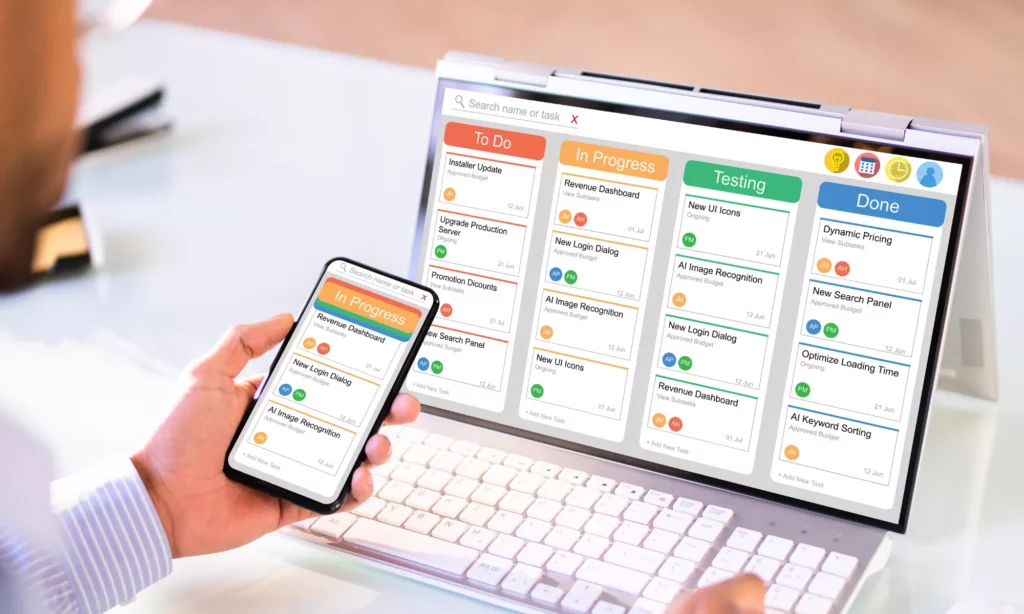
So, after looking at both the benefits and challenges of using Jira for Agile project management, you may soon notice: the tool itself isn’t the problem, but it’s how teams use it. So, to use Jira effectively, below are several best practices your Agile team may adopt:
- Define clear sprint goals. Before starting a sprint, the whole team should agree on a specific goal. A clear goal helps the team stay focused and set up the right workflow in Jira.
- Keep workflows simple. As mentioned earlier, overly configuring Jira can make your workflows complex and result in counterproductive effects. Therefore, focus on simple workflows that fit your project and team instead. Accordingly, your team should stick to basic, yet important stages like “To Do,” “In Progress,” and “Done,” and only expand if there’s a real bottleneck that needs addressing.
- Break down work into smaller stories. Break work into smaller user stories (and sub-tasks when needed), so that your team can easily track progress and reduce the risk of tasks dragging on over too many sprints.
- Use automation to reduce manual work. Use Jira’s automation features to implement repetitive actions like assigning issues, updating statuses, or closing tasks. By adopting built-in automation rules wisely, you can reduce manual effort and keep the board up to date without constant intervention. But don’t automate everything because some parts of workflows still require human oversight.
FAQs About Jira And Agile
Is Jira Good For Agile Project Management?
Yes, Jira is designed to support Agile project management, with built-in features for Scrum (sprints, backlogs) and Kanban (continuous flow boards). The tool gives teams structure, visibility, and reporting to work well in Agile environments.
However, like other tools, whether Agile teams achieve the best outcomes with Jira depends on how they use it. If workflows are overcomplicated or the backlog isn’t maintained, Jira can feel heavy. That’s why setting Jira up properly is a must to create a reliable workspace for planning, tracking, and improving Agile delivery.
Is Jira Better For Scrum Or Kanban?
Jira works well for both Scrum and Kanban. But it has stronger built-in support for Scrum, mainly because of its sprint planning tools, backlog view, and reports like burndown and velocity charts. But its Kanban boards are also highly flexible and easier to manage for teams that prefer continuous delivery.
How Do Agile Teams Use Jira Every Day?
Jira acts as an Agile team’s shared workspace. Accordingly, developers pick up tasks from the board, move issues across workflow stages, and update progress as they go. Meanwhile, product owners refine the backlog, adjust priorities, and prepare upcoming work.
Teams also use Jira during Agile ceremonies (e.g., daily stand-ups or reviews) to plan work, as well as review the board to see what’s done, what’s in progress, and what’s blocked.
What Are The Most Useful Jira Reports?
Some most useful Jira reports include:
- Burndown charts that show whether a sprint is on track
- Velocity charts that help teams estimate how much work they can handle in future sprints
- Cumulative flow diagrams that highlight bottlenecks and workflow stability
- Epic reports that track progress across larger bodies of work
Each report serves a slightly different purpose. But together, they give teams both short-term and long-term visibility into performance.
Can Small Teams Use Jira Effectively?
Yes, small teams can use Jira effectively, as its features are scalable for different team sizes. Further, its Free edition includes almost all features for up to 10 users, making it a great starting point for those who are looking for powerful software to support their Agile workflows with tight budgets.
Conclusion
Jira is really a powerful project management tool that supports Agile workflows effectively. It helps both Scrum and Kanban teams organize work through backlogs and hierarchies, and provides reporting that keeps progress visible. More importantly, it gives teams a shared place to plan, track, and adapt without losing track of delivery goals. Of course, like we’ve seen, it works best when kept simple and aligned with how the team operates.
If you’re looking for a team that knows how to apply Agile in real-world projects, why don’t you work with Designveloper?

As a leading software and mobile app development company in Vietnam, we combine Scrum and Kanban practices with Jira to build structured yet flexible workflows. Whether it’s managing sprint backlogs, tracking velocity, or using reports to make quick decisions, Jira becomes part of our larger system helping our teams move fast and deliver true value.
This combination between powerful tools like Jira and Agile practices helps Designveloper deliver various successful projects across industries. Some typical projects include Lumin, ODC, Swell & Switchboard, Chloe Ting, and Aha. Jira allows us to break down work into small, testable increments, shipping features early, and iterating based on feedback.
So whether you’re planning to build a digital solution from scratch or modernize an existing system, contact us and let’s start turning your ideas into something real.
Also published on

Share post on










Read more topics









You may also like



Jira And Agile: How To Use Jira For Agile Project Management
Jira And Agile: How To Use Jira For Agile Project Management Published March 25, 2026
Agile Web Development: How It Works, Process, and Benefits
Agile Web Development: How It Works, Process, and Benefits Published March 25, 2026
Agile Release Planning: A Complete Guide for Agile Teams
Agile Release Planning: A Complete Guide for Agile Teams Published March 25, 2026