















What Is an IDE (Integrated Development Environment)?

Many new developers ask, what is an ide? The short answer is simple. An IDE helps you write, run, test, and ship code in one place. It reduces tool switching. It also helps you catch issues earlier. Modern IDEs often add smart help, Git features, and AI suggestions.
In this guide, you will learn what an IDE does, what it contains, and how it fits into daily work. You will also see common IDE types and real examples. Along the way, you will pick up practical tips to choose an IDE that matches your goals.
What Is an IDE (Integrated Development Environment)?
An IDE is a software app that combines the core tools you need to build software. People also call it an integrated development environment. Instead of opening a separate editor, terminal, and debugger, you work inside one main interface.
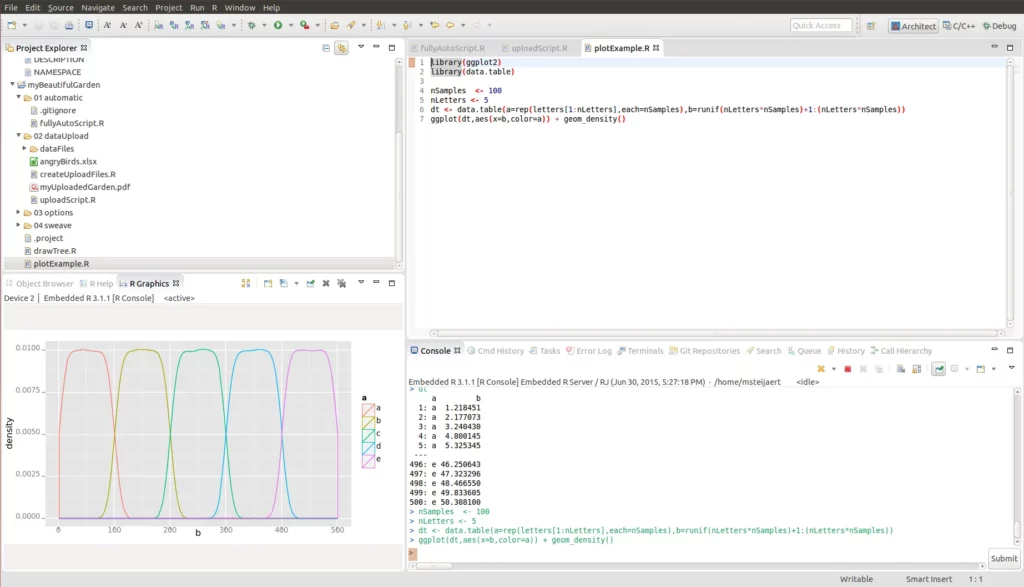
Think of an IDE as a “workbench” for coding. It usually includes a code editor, a way to run or compile code, and tools to inspect problems. Many IDEs also include Git controls, testing panels, database browsers, and deployment helpers.
An IDE does not replace programming knowledge. However, it can guide you while you learn. It can also speed up expert work. For example, it can rename a method across a large codebase in seconds. It can also step through a bug line by line, so you see what the program does at runtime.
IDE choice often depends on your language and your workflow. Java teams may prefer deep refactoring tools. Web teams may prefer fast plugin-based editors. Data teams may prefer notebook-style IDEs that show charts next to code.
3 Core Components of a Traditional IDE
1. Source Code Editor
The source code editor is where you spend most of your time. It handles the basics, like typing, selecting, and searching. Yet a good editor does far more than plain text editing.
First, it highlights syntax. That helps you spot mistakes faster. Next, it offers auto-complete. That reduces typing and errors. Many editors also show tooltips, so you can see a function signature without leaving your file.
Most IDE editors also support refactoring. Refactoring means changing code structure without changing behavior. For example, you can rename a class or extract a block into a function. The IDE updates every reference for you. This saves time and prevents missed updates.
Many IDEs also run linters and formatters. Linters point out risky patterns. Formatters keep code style consistent. As a result, teams can review code faster.
2. Debugger
A debugger helps you find and fix bugs by watching code run. It lets you pause execution at a breakpoint. Then you can inspect variables and call stacks. You can also step forward one line at a time.
This matters because many bugs only appear at runtime. For example, a value may look fine in your head, but the program may compute something else. With a debugger, you stop guessing. Instead, you observe what the program really does.
Most IDE debuggers also support watches. A watch tracks an expression as you step through code. Many also support conditional breakpoints. That means the program only pauses when a condition becomes true. This helps when a bug happens only after many iterations.
Debuggers also make it easier to work with threads, async tasks, and services. You can pause one thread while others run. You can also inspect logs and network calls in some IDEs.
3. Build Automation Tools
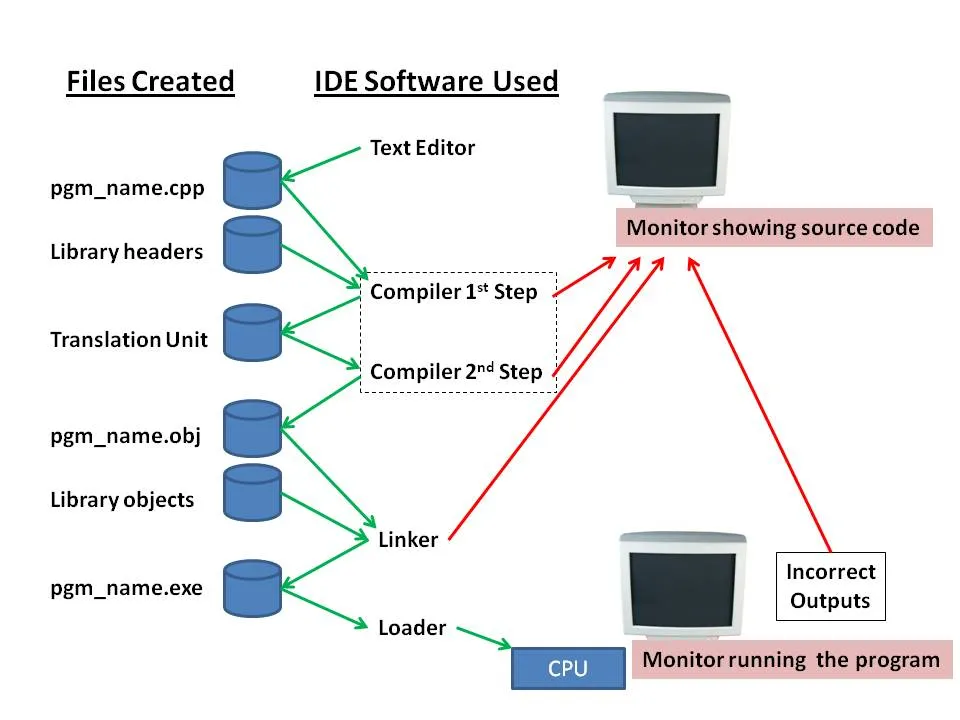
Build automation tools turn source code into a runnable product. In compiled languages, this often means compile, link, and package. In web projects, it may mean bundling, minifying, and running tests.
Traditional IDEs often include build buttons and run configurations. You define how to start your app. Then you run it with one click. Many IDEs also keep multiple profiles. For example, you can run a local dev build, a test build, and a production build.
These tools also manage dependencies. For example, in Java, builds often use Maven or Gradle. In .NET, builds often use MSBuild. In JavaScript, builds often use npm scripts or task runners. A good IDE reads these settings and makes them easier to use.
Build tools also connect to CI pipelines. When your local build matches your CI build, releases go smoother. As a result, teams spend less time fixing “works on my machine” problems.
How Does an IDE Work?
An IDE works by connecting many development tools behind one user interface. You still use the same compilers, runtimes, and debuggers. The IDE just orchestrates them for you.
Here is a typical workflow when you code with an IDE:
- Write code
- IDE suggests & flags errors
- Compile / run
- Debug
- Build & deploy
First, you write code. Next, the IDE suggests completions and flags errors early. Then you compile or run the app using a preset configuration. After that, you debug issues with breakpoints and variable inspection. Finally, you build and deploy using built-in tasks or linked scripts.
This flow feels smooth because the IDE integrates tools instead of forcing you to use them separately. Without an IDE, you might open a text editor, then switch to a terminal, then open another app to debug, and then return to the editor. With an IDE, you move through the same steps with fewer context switches.
Modern IDEs also index your project. Indexing means the IDE scans files and builds an internal map of symbols. That map powers fast search, “go to definition,” and safe refactoring. It also helps code completion stay accurate.
Many IDEs now add AI features too. They can generate code drafts, explain errors, and suggest tests. In one recent industry report, 85% of developers regularly use AI tools for coding and development. That trend pushes IDE vendors to integrate AI directly into the workflow.
Types of IDEs and Examples
1. Desktop IDEs
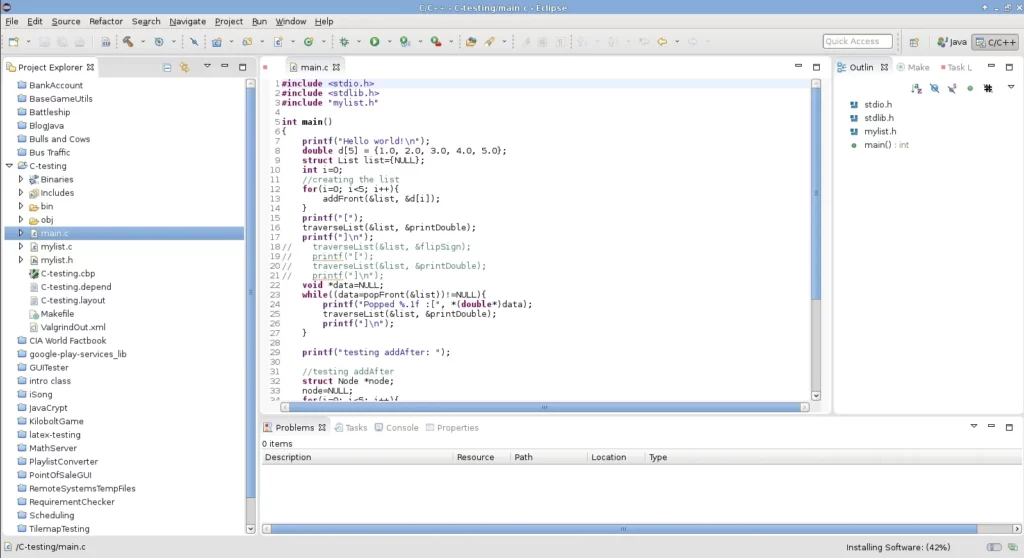
Desktop IDEs run on your machine. You install them like any other desktop app. They often feel “heavier,” yet they also offer deep features and strong offline support.
When Desktop IDEs Shine
Desktop IDEs work well when you need strong performance. They also help when you work on large codebases. In addition, they suit environments with strict network rules, since you can code offline.
Examples
Common examples include Visual Studio, Xcode, and CLion. These tools often ship with language tooling built in. They also integrate with local compilers and SDKs.
If you build iOS apps, Xcode often becomes the default. If you build Windows desktop apps, Visual Studio often becomes the default. And if you build large C or C++ systems, tools like CLion can help with navigation and refactoring.
2. Cloud-Based IDEs
Cloud IDEs run in a browser. Your code may still live in Git. However, your dev environment runs on remote machines. This can reduce setup time for teams.
Why Teams Use Cloud IDEs
Cloud IDEs help teams standardize environments. A new teammate can open a repo and start coding fast. This also helps when you switch devices. You can code from a laptop, a desktop, or even a tablet.
Examples
Examples include GitHub Codespaces, IDX (by Google), AWS Cloud9, and Gitpod. These tools often use containers or templates to define the environment. As a result, the team shares the same dependencies and tool versions.
Cloud IDEs also raise new concerns. You need to think about secrets. You also need to think about access control. Yet when teams manage them well, cloud IDEs can speed up onboarding and reduce “setup debt.”
3. Language-Specific IDEs
Language-specific IDEs focus on one main language or ecosystem. They often feel “opinionated.” Yet that focus brings stronger analysis and refactoring.
What You Get From Language Focus
These IDEs understand language rules deeply. They can detect subtle type errors. They can also refactor code with more confidence. This matters in large projects, where manual refactors can break builds.
Examples
Examples include PyCharm for Python, IntelliJ IDEA for Java and Kotlin, RubyMine for Ruby, and PhpStorm for PHP. These IDEs often include rich project templates. They also ship with advanced navigation tools.
Language-specific IDEs often cost money for full features. Still, many teams pay because the time savings add up. This is common in enterprise settings, where codebases stay alive for years.
4. Multi-Language IDEs
Multi-language IDEs aim to support many languages at once. They often rely on plugins. That design lets you extend the tool for new stacks as your work changes.
Why Plugin Ecosystems Matter
Plugins can add new languages, linters, debuggers, and UI panels. This flexibility helps when you jump between backend and frontend code. It also helps when you work across multiple client projects.
Examples
Examples include Visual Studio Code (VS Code), Eclipse, and NetBeans. In one major developer survey, Visual Studio Code with 75.9% topped the list of developer environments used. That result reflects how much developers value speed, plugins, and cross-language work.
Multi-language IDEs can still feel lightweight. Many developers treat them as “super editors.” Yet with the right extensions, they behave like full IDEs. For example, you can add debugging, test runners, and container tools.
5. Special-Purpose IDEs
Special-purpose IDEs target a specific domain. They often include unique features that general IDEs do not offer. This makes them ideal for niche workflows.
Mobile Development
Mobile IDEs help you build and test iOS and Android apps. Android Studio focuses on Android tooling. Xcode focuses on Apple platforms. These IDEs often include device simulators and performance profilers.
Data Science and Machine Learning
Data-focused IDEs often support notebooks, plots, and interactive runs. Examples include JupyterLab, Spyder, and RStudio. They make it easy to mix code, results, and notes in one view.
Embedded and IoT
Embedded IDEs help you program microcontrollers and boards. Examples include Arduino IDE, PlatformIO, and Keil. These tools often include board managers and serial monitors.
Game Development
Game workflows often mix code with assets and scenes. Some engines ship their own editors, like the Godot Editor. Many studios also use Visual Studio for Unity or Unreal projects because of debugging and C++ support.
A newer trend also blends local and remote computing. Some tools keep the UI on your desktop while they run heavy tasks on remote servers. One example is JetBrains Fleet. This hybrid idea gained attention as teams adopted stronger cloud workflows in a newer 2025 trend.
Benefits and Limitations of Using an IDE

IDEs can boost speed and quality. Yet they also add complexity. The right choice depends on your goals and constraints.
Key Benefits
- Faster coding: Auto-complete and navigation reduce manual searching.
- Fewer mistakes: Inline checks catch errors early.
- Safer changes: Refactoring tools update references across projects.
- Better debugging: Breakpoints and watches reduce guesswork.
- Stronger teamwork: Git panels, diff views, and code review helpers keep context close.
Common Limitations
- Higher system load: Some IDEs use a lot of memory and CPU.
- Learning curve: Menus, panels, and shortcuts can overwhelm beginners.
- Hidden complexity: One-click builds can hide what commands really run.
- Plugin risk: Extensions can slow performance or create security concerns.
- Cloud trade-offs: Web IDEs depend on network stability and access controls.
Despite limits, IDEs remain popular because they reduce friction. Also, modern software often spans many tools. An IDE helps you keep them organized.
The developer world keeps growing too. GitHub’s latest Octoverse notes over 180 million developers on the platform. As more people build software, teams need tools that support consistent workflows. IDEs often fill that role.
What’s the Difference Between IDE vs Text Editor?
A text editor focuses on writing text. It may support syntax highlighting and basic extensions. However, it usually does not include full project tools by default.
An IDE includes a broader set of tools. It often adds debugging, build systems, test runners, and refactoring. It also often manages project settings and SDKs.
Some tools blur the line. For example, a “light” editor can act like an IDE when you add extensions. Likewise, a full IDE can behave like an editor when you keep the UI minimal.
| Aspect | Text Editor | IDE |
|---|---|---|
| Main goal | Fast text editing | Full development workflow |
| Built-in tools | Usually minimal | Usually broad and integrated |
| Debugging | Often via plugins | Often built-in and deep |
| Refactoring | Often limited | Often robust and safe |
| Best fit | Small scripts, quick edits | Large projects, team work, long-term codebases |
If you mainly change config files or write short scripts, a text editor may be enough. However, if you build complex apps, an IDE can save time and reduce mistakes.
How to Choose the Right IDE

Choosing an IDE can feel hard because options look similar at first. Start by matching the tool to your work. Then refine your choice based on comfort and team needs.
By language
Pick an IDE that understands your main language well. If you use Java or Kotlin, a language-focused IDE can help with refactoring. If you switch languages often, choose a plugin-based IDE that covers many stacks.
By scale
Small projects can run well in lightweight tools. Large projects need stronger indexing, navigation, and debugging. If your build takes time, choose an IDE with solid run profiles and test tools.
By platform
Some IDEs work best on certain platforms. Xcode targets Apple platforms. Visual Studio targets Windows development deeply. Cross-platform IDEs work well when you move between machines.
By experience
Beginners often benefit from simple UI and good learning support. Look for clear error messages and stable defaults. Advanced developers often want keyboard-driven workflows and deep customization.
Also think about your environment constraints. Do you need offline work? Do you need strict security controls? Or do you work in containers? Answering these questions will narrow the list fast.
FAQs about IDE
1. Is an IDE Necessary For Programming?
No, an IDE is not strictly necessary. You can write code in a text editor and run it in a terminal. Many developers do this for small scripts or simple tasks.
However, IDEs can remove friction. They help you navigate projects, manage dependencies, and debug faster. They also help teams share consistent workflows. So while you can code without one, an IDE often helps you grow faster.
2. Can Beginners Use an IDE?
Yes, beginners can use an IDE. In fact, many beginners learn faster with IDE support. Auto-complete teaches APIs. Inline errors teach syntax rules. Debuggers teach program flow.
Start small. Learn the editor first. Next, learn how to run code. Then learn breakpoints. Over time, add features like refactoring and test runners. This step-by-step approach prevents overload.
Also choose an IDE with good docs and a large community. That way, you can find answers quickly when you get stuck.
Conclusion
Now you can answer what is an ide without guessing. An IDE brings your editor, debugger, and build tools into one workflow. As a result, you spot issues earlier and ship updates with less friction.
At Designveloper, formed in 2013 in Ho Chi Minh City, we build products with the same mindset we recommend in this guide. We keep the toolchain tight. We also keep the workflow clear. So each sprint stays focused on real outcomes, not setup noise.
Because we deliver 12 years of expertise and projects like Lumin, Joyn’it, and Wave, we know how much the right IDE and workflow can change a team’s velocity. We support clients end to end with web app development, mobile app development, software development, cybersecurity consulting, AI development services, and VoIP app development, plus UI/UX and ongoing maintenance. If you want to choose an IDE, standardize your dev setup, or build a production-ready app, we can help you move faster with fewer surprises.
Also published on

Share post on










Related Articles



Cloud Application Development: Architecture, Process, And Cost
Cloud Application Development: Architecture, Process, And Cost Published September 14, 2026
Android App Development: Stack, Process, Cost, And Best Practices
Android App Development: Stack, Process, Cost, And Best Practices Published September 09, 2026
How Gitignore Works: Rules, Patterns, Examples, And Debugging Tips
How Gitignore Works: Rules, Patterns, Examples, And Debugging Tips Published August 05, 2026